Music can now be created simply by describing it in words. SUNO is an AI-powered service that turns a text prompt into a full track. For a beginner, it's a great opportunity to try their hand at songwriting without knowing music notation. Let's walk through how to go from registration to your first result quickly.
Platform overview
SUNO understands descriptions in natural language: genre, mood, tempo, instruments, and even the theme of the lyrics. You set the parameters, and the neural network creates a melody with vocals and arrangement. What's especially impressive is that the voice sounds natural, and the style can be anything — from pop ballads to aggressive rock.
The project was born at the intersection of music and artificial intelligence: its creators are themselves musicians and AI experts. That's why SUNO has a great feel for song structure: verses, choruses, transitions. The service also works well with another AI — Microsoft Copilot. If you already use the Microsoft ecosystem, you can start generating music right from a conversation with the assistant.
Both free generations (with limitations) and a subscription are available, with the latter offering more options, including commercial rights to tracks.
First steps
Start with the official SUNO website or check out the AIPURE catalog — it's convenient for following links and reading reviews. Registration won't take much time: an email address or Discord, Google, or Microsoft account will work. Once logged in, you'll land in your personal dashboard with several sections:
- Create — for making new tracks;
- Library — your saved compositions;
- Explore — music by other users for inspiration.
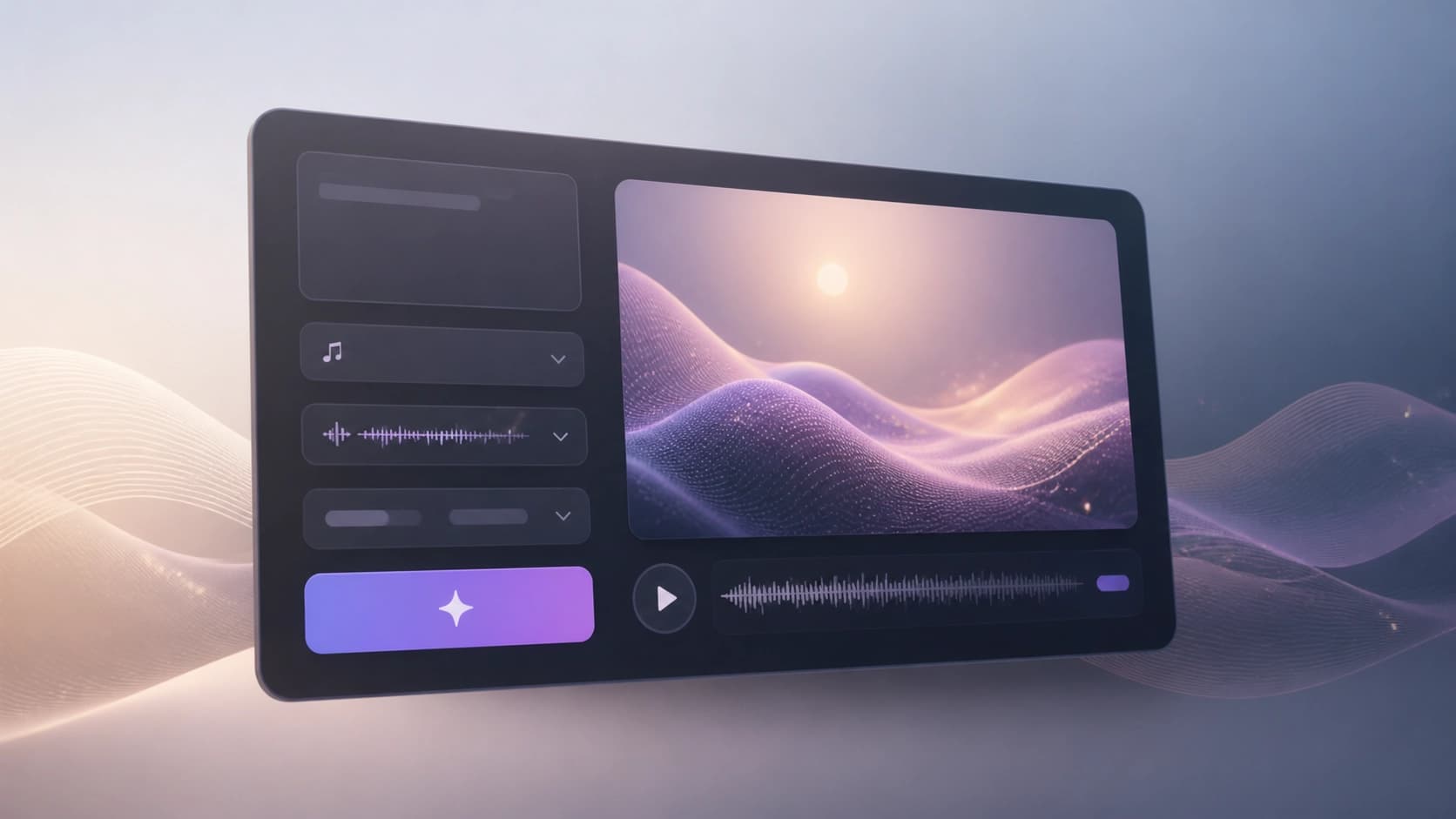
To generate your first track, go to the Create section. Describe the result you want, for example: "an energetic electronic composition for sports, with female vocals." You can also specify finer details: key, tempo, mood.
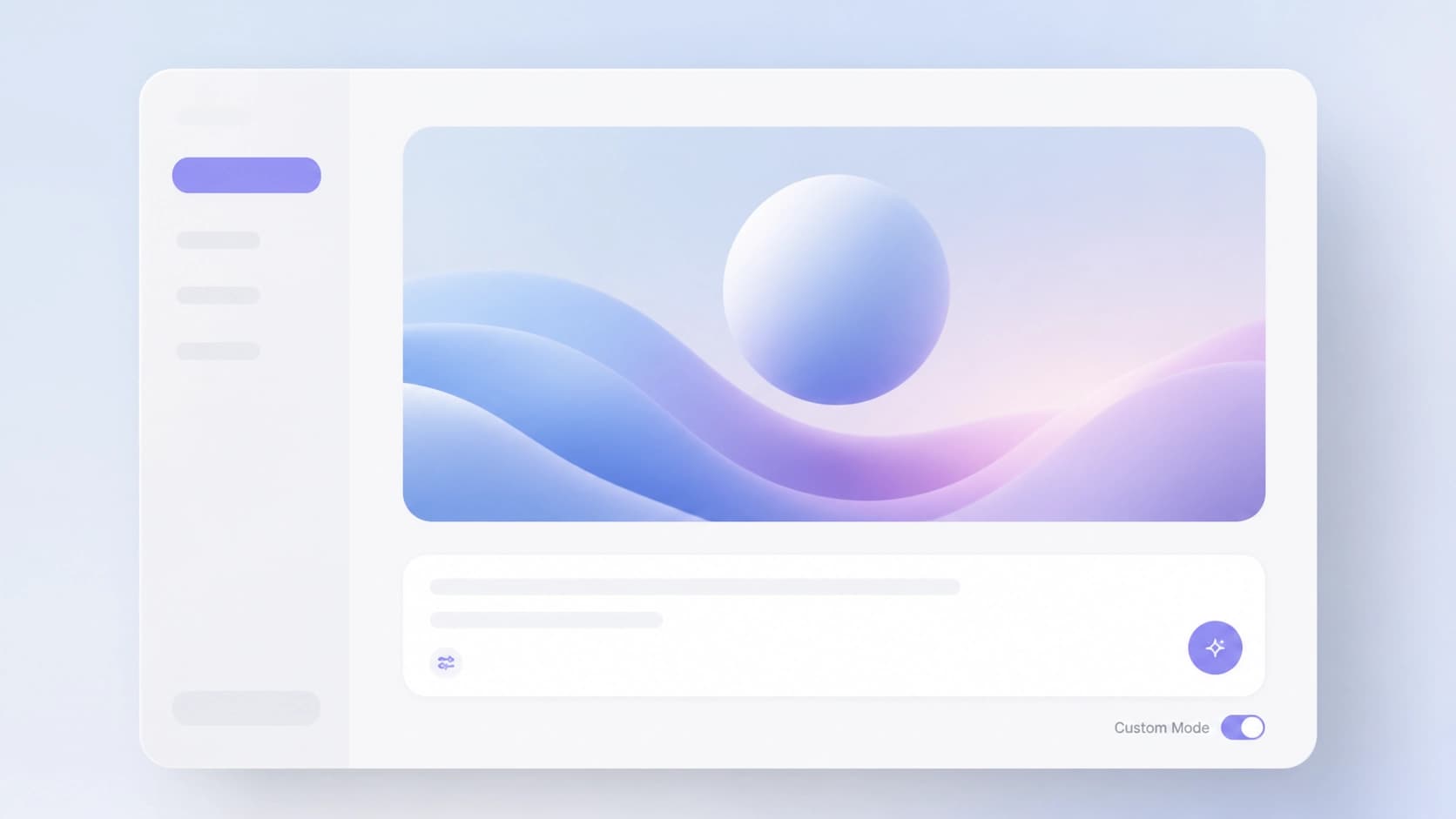
If you want to write your own lyrics, turn on Custom Mode. In this mode, you can paste existing text or let SUNO come up with it for you. There's also Audio Input mode: upload or record an audio clip, and the AI will create a new song based on it.
When the track is ready, it will appear in Library. From there, you can easily save it to your device, share a link, or continue editing.
Use cases
SUNO opens up broad possibilities beyond entertainment. Here are a few areas where AI-generated music comes in handy:
- Personal tracks. Create a song for a loved one using their name and meaningful dates in the lyrics.
- Education. Learn the basics of composition by experimenting with different styles and structures. The AI acts as a mentor, showing you what changes depending on the description.
- Media projects. Quickly get background music for videos, films, or games — no need to wait for a composer.
- Therapy and mood. Generate relaxing ambient for meditation or a motivating track for your morning run.
- Business and brands. Create a jingle or sonic logo that is recognizable and unique.
- Collaborative creativity. Get together with friends: everyone contributes their own prompts, and the AI weaves them into a single composition.
Practical tips
The tips below will help you get the hang of SUNO faster. Beginners often get disappointed if the first result isn't perfect. Don't worry: getting a good track usually takes several attempts. Here's what to try:
- Start with specific descriptions. Instead of "beautiful song," write "slow acoustic ballad with a sad mood and male vocals."
- Use Custom Mode to insert your own lyrics. That way, you'll get a track that truly reflects your idea.
- Experiment with prompt length. Sometimes a short prompt is enough; sometimes, the more details, the more interesting the result.
- Listen to other users' tracks in the Explore section and borrow their successful techniques for your own descriptions.
Don't be afraid to hit the generate button again — every attempt gives a unique result. And be sure to save your best versions in Library so you can later assemble them into a full album.

Now you know the basics of working with SUNO. Sign up, come up with a prompt, and create your first musical masterpiece — the process will take no more than a couple of minutes.