

Artificial intelligence has firmly entered the daily work of millions of people, and Claude by Anthropic rightfully holds a place among the leaders in this market. Unlike many competitors, this assistant is positioned as a tool focused on safety, deep context understanding, and natural dialogue. However, like any powerful tool, Claude requires a thoughtful approach to setup and an understanding of its architecture to fully unlock its potential.
In this guide, we will look at where to start getting acquainted with the service, how to properly organize your workspace, and which use cases deliver the most value.
Getting to know the Claude ecosystem
Before diving into settings, it is important to understand what exactly you are working with. Claude is a family of large language models accessed through several interfaces: the web version (claude.ai), an API for developers, and mobile apps. For most users, the web interface is the starting point.
Claude's key feature is its ability to work with very large volumes of text. Unlike many alternatives, the model can analyze entire books or extensive document databases without losing the thread of reasoning. This makes it an indispensable assistant for researchers, lawyers, writers, and analysts.
 Initial account and interface setup
After registering on the official service website, it is worth spending a few minutes adapting the interface to your needs. The first thing that stands out is minimalism. There are no overloaded menus, which allows you to focus on the conversation.
Profile and model settings
Go to your profile settings. Pay attention to the model version selection. Providers usually offer a choice between the latest current version and the previous stable one. Beginners are recommended to start with the latest version, as it includes improved reasoning algorithms. However, for tasks that require maximum response speed, it is sometimes better to switch to a lighter previous model.
Managing memory and history
Claude allows you to maintain several parallel conversations. This is a critically important feature for organizing projects. Instead of mixing code writing and marketing email writing in one chat, create separate chats for each task. The sidebar lets you rename, archive, and delete conversations.
Important: despite having history, use of "hot" memory is limited. If you are working on a large project, do not rely on the bot remembering details from a conversation a week old. It is better to put key requirements at the beginning of a new chat right away.
Step-by-step guide to setting up your workspace
For maximum efficiency, follow a simple action plan when starting to work with the service.
- Create a project structure. Define 3–5 key areas of use for yourself: for example, "Work Texts," "Programming," "Learning." Set up a separate chat for each.
- Formulate initial context. Before starting, do not hesitate to write in the chat: "You are my assistant. We will be working on technology articles. Write in a business-like but friendly tone." This sets the direction of behavior.
- Configure the output format. If you need tables, lists, or code, state this directly in the first message. Claude follows formatting instructions well.
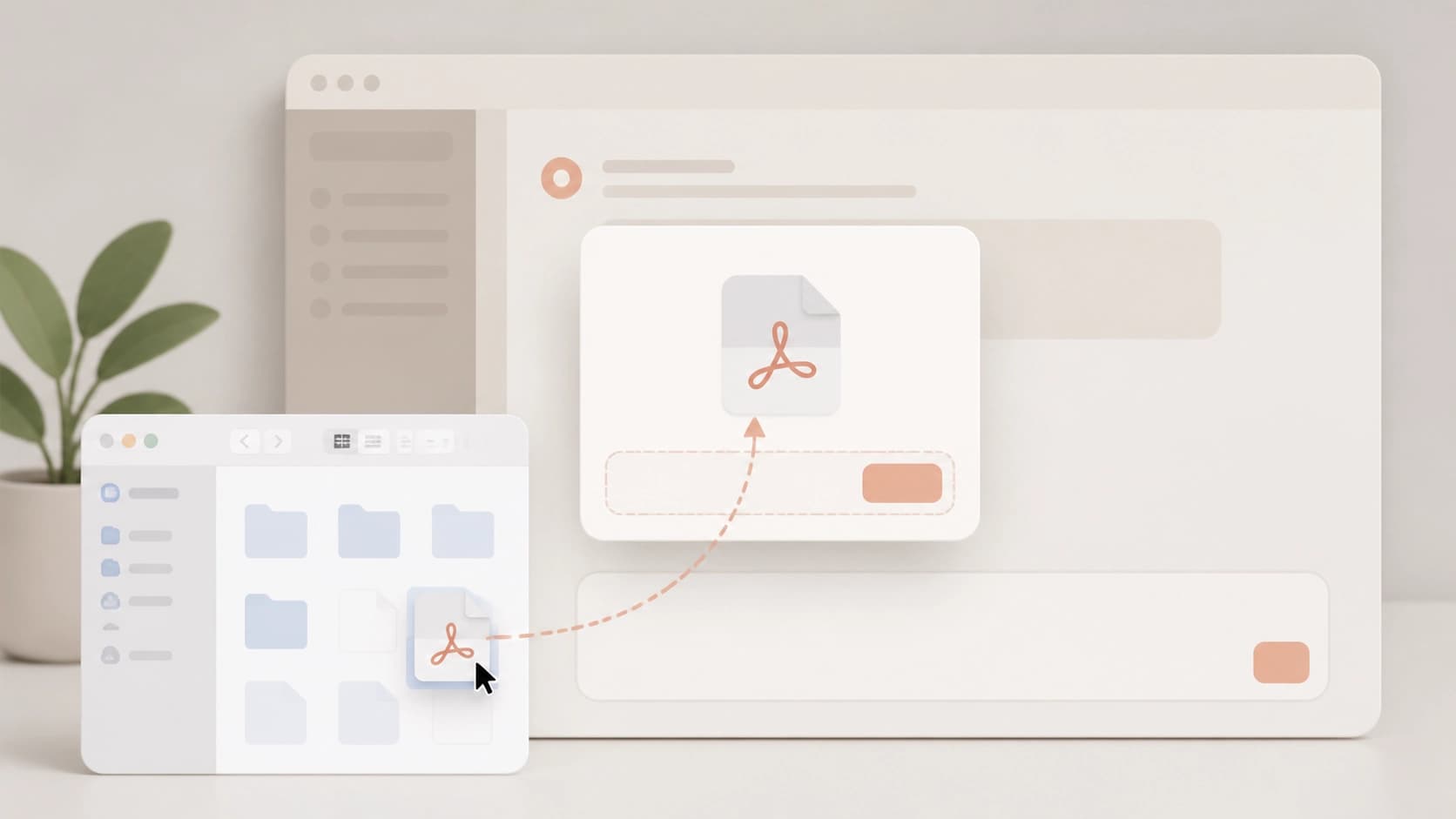
- Check file processing mode. Upload a test document to the upload tab. Make sure the model correctly recognizes text, tables, and structure. This will help avoid surprises in the future.
- Enable web search (if available). Some plans and regions have a web search feature. If it is available, enable it to get up-to-date data, but keep in mind that it may not be needed for purely analytical tasks.
 Key use cases: from simple to complex
Once you have mastered the interface, move on to practice. Claude is good not only for text generation but also for complex intellectual work.
Working with large documents
This is the model's native element. You can upload a PDF, DOCX, or TXT file and then ask questions about it. The model does not just provide quotes — it can summarize the author's position, compare arguments within the text, and look for logical inconsistencies. This saves hours of manual reading.
Programming and code debugging
Although Claude is not a specialized code editor, its capabilities in this area are impressive. It can write functions from scratch, explain how complex algorithms work, and find errors. Tips: when requesting code, specify the language, library versions, and desired coding style. The more precise the technical specification, the better the result.
Content creation and email analysis
The service does an excellent job of adapting text for different audiences. You can write a dry report and then ask Claude to rewrite it for a client presentation, preserving the facts but changing the style. For work communications, the "email draft" feature is useful: simply list the points you want to convey and get a structured message.
Advanced prompting techniques for Claude
The secret to getting a high-quality result lies in how you formulate your request. Claude was trained on human preferences, so it understands contextual tasks best.
- The "Fix and improve" technique. Ask the model to first complete the task in a draft version, then give feedback on that same text and suggest corrections. This allows for a deep refinement of the material.
- Using roles. Clearly define the assistant's role: "Act as an experienced financial analyst," "Be a strict editor." Changing roles drastically changes the vocabulary and depth of the response.
- The "Question-Answer" format. If you need to find inconsistencies in an argument, ask the model to play the role of an opponent and ask you tough questions about your own project. This helps identify weak points.
Synergy with API and integrations
For those who want to automate routine tasks, there is access to the API and integrations with popular services. You can set up automatic processing of incoming emails, scheduled generation of summaries, or integration with development environments.
Configuring via the API requires basic programming skills. When allowing third-party applications to interact with Claude, always carefully read what data is being transmitted. This is a matter of digital hygiene.
Conclusion
Claude is not just a chatbot — it is a serious intellectual assistant. The key to success is meaningful use of its capabilities. Start small: organize your chats, study how it responds to different request styles. Gradually, you will build your own interaction system that will allow you to delegate routine work to artificial intelligence while focusing on truly creative and strategic tasks.