
PhotoRoom from scratch: a simple guide to removing backgrounds and adjusting images
Learn how to get started with PhotoRoom: from creating an account to saving your finished image. You'll discover how to quickly remove the background, choose a replacement, and use the service's useful features.
What is PhotoRoom
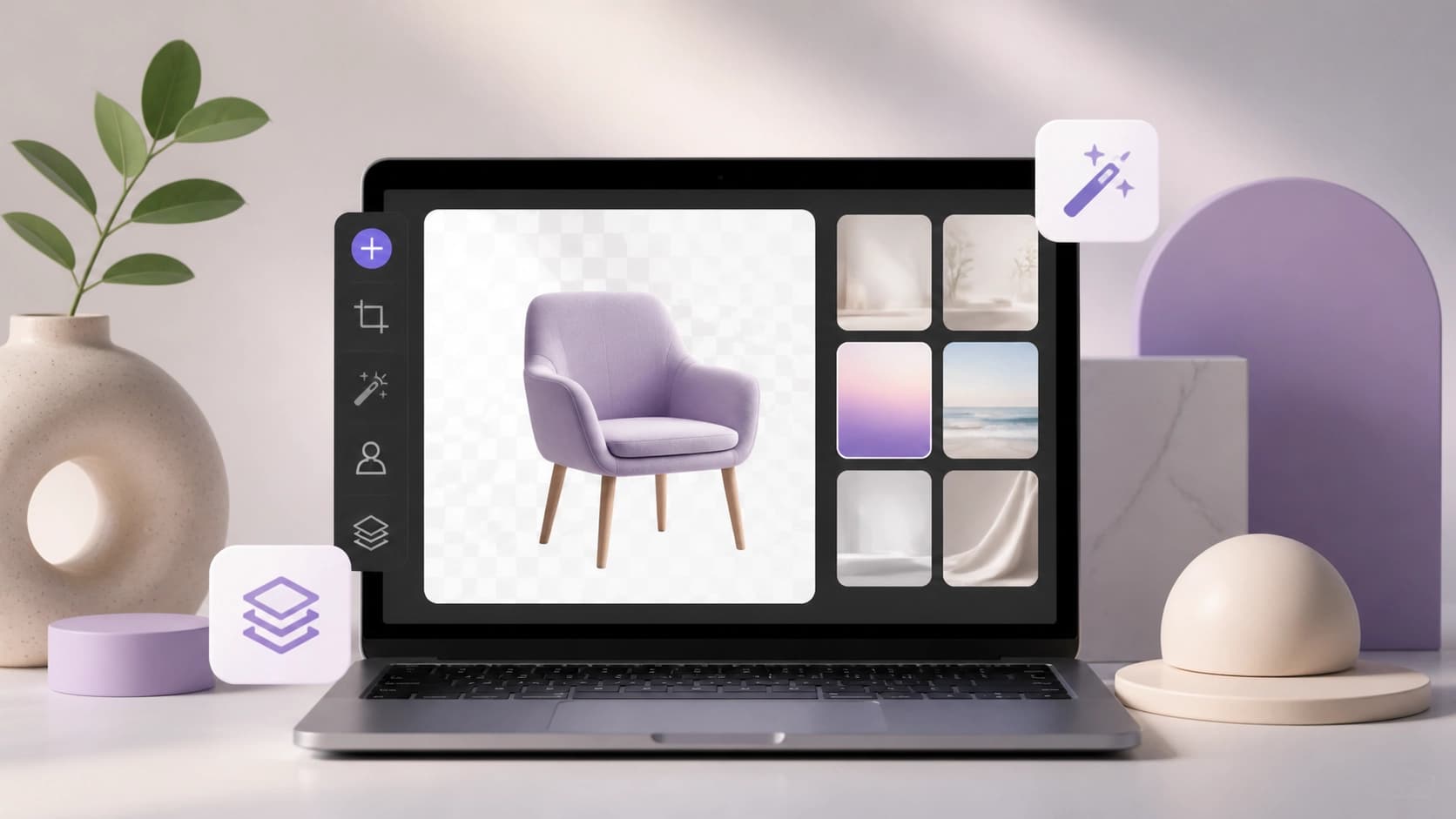
PhotoRoom is an AI photo editor that works on two platforms at once: a mobile app and a web browser. Its main feature is automatic background removal. Just upload a photo — and the algorithm will separate the subject from the background on its own, after which you can isolate the object, place it on a different background, or leave it as is.
The tool is primarily designed for those who sell products online: marketplace sellers, small business owners, and creative teams. But it's also useful for the average user when you need to quickly prepare an image for social media or a presentation. In addition to background work, the editor can improve photo quality, retouch, adjust brightness, and use ready-made templates for styling.
The distribution model is freemium: basic features are free, while a paid Pro subscription unlocks additional capabilities such as batch processing and high-resolution export. This is convenient if you regularly process many images.
Getting started
The first step is to install the app on your phone or open the web version of the editor in your browser. On the main screen, click the "Start from Photo" button (or its equivalent depending on the version), then upload an image from your gallery or take a new photo right away.
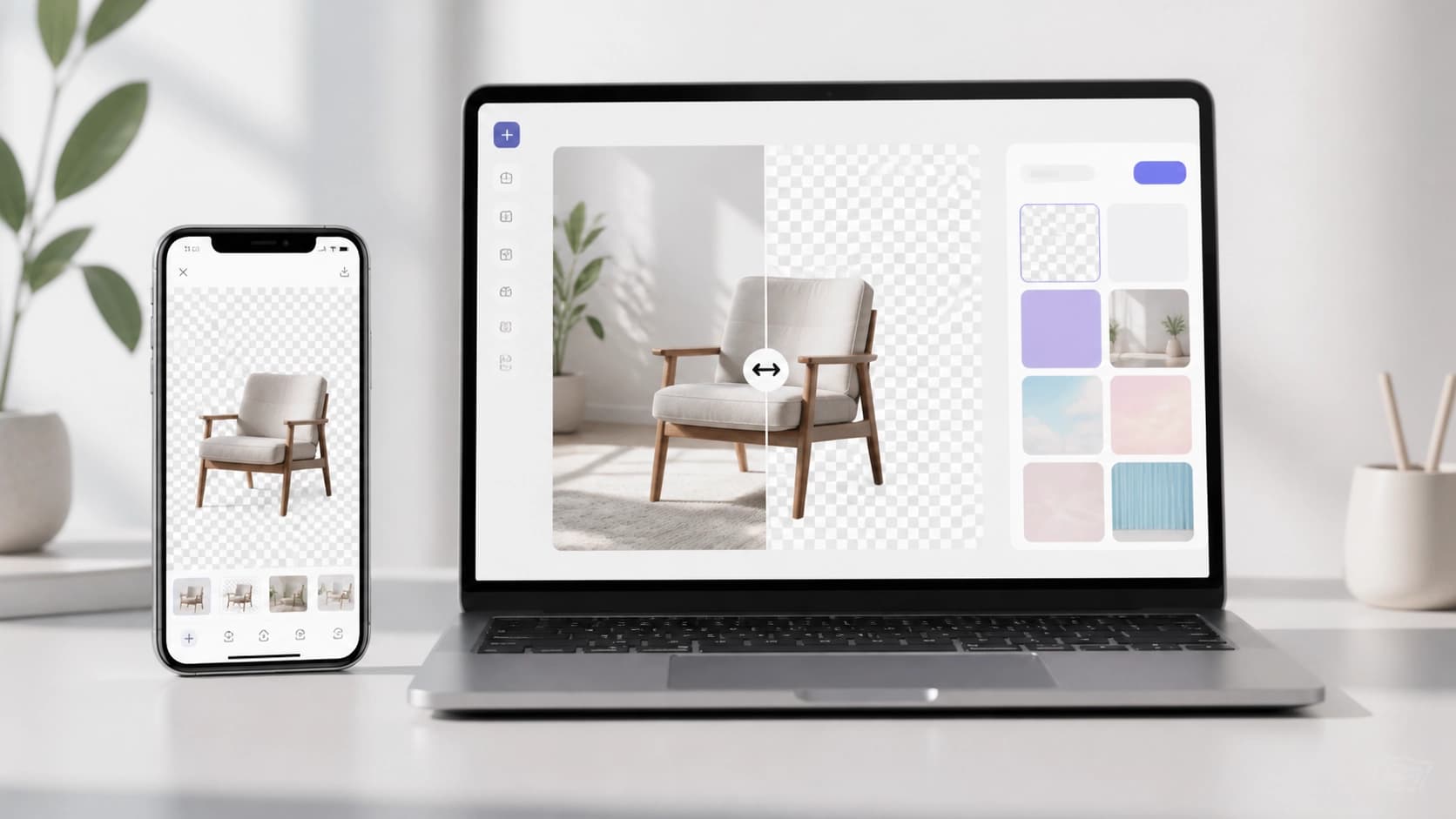
From there, everything happens almost without your involvement: PhotoRoom removes the background on its own and shows a preview of the result. Then you can choose a new backdrop — from the built-in collection of ready-made backgrounds or upload your own image, such as a studio photo or a texture.
Once the background is replaced, it's worth moving on to adjustments: tweak brightness, add filters, correct shadows so the image looks cohesive and natural. The work finishes with a tap on the "Share" button — this saves the file to your device or sends it straight to a messenger or social media.
Keep in mind: previewing before saving isn't an extra step, but a chance to spot flaws at the seam between the subject and the new background. Often, a slight change in brightness or contrast is all it takes to make the result cleaner.
How to sign in via web and create an account
Web access wasn't available in PhotoRoom from the start, but it's now widely used. To open the editor in your browser, first make sure the app is updated, then go to the service's website. The system will prompt you to sign in: enter your email, receive a sign-in link in your inbox, and follow it. After that, you'll be in your account and can view and download previously created projects.
Registration also takes a couple of minutes. On the website, click "Sign Up," choose how to create your account — via email or a third-party service — enter your email and come up with a password. Then a confirmation email will arrive at that address: click the link, and your account will be activated. After that, you can get back to work.
Syncing between the mobile and web versions is useful if you started editing on your phone but want to finish on your computer. The key thing to remember is that signing in through the browser gives you the same basic capabilities, but some Pro features will still require a subscription.
Tips for effective setup and workflow
To get the most out of the editor, it's worth mastering a few techniques. First of all, pay attention to batch processing: if you need to remove backgrounds from a dozen product photos, Pro mode will do it in one pass rather than file by file.
The second point is a consistent style for your brand. Create your own design templates so all your posts look the same. This is especially useful for stores and bloggers managing multiple social media accounts at once: buyers will recognize your product faster in their feed if the images share a consistent look.
Don't skip the preview before finalizing. Despite how smart the algorithms are, PhotoRoom sometimes makes mistakes on complex backgrounds — for example, when shooting with glare or hair. A couple of minutes of checking will save time on redoing the work.
If you're using the free version, keep the limitations in mind: you'll likely lack ultra-high-resolution export and the Smart Resize feature, which automatically fits an image to the required platform dimensions. Assess how often you actually need these features — the Pro subscription might pay for itself on your first big project.
Finally, it's worth checking out the editor's official community. There, users share their own backgrounds, templates, and techniques that aren't covered in the official documentation. It's a free way to expand your skills without reading long manuals.

Frequently asked questions
Related materials
All materials
Hybrid Image Annotation: Automation Accelerates Computer Vision Model Training
The article describes how pre-labeling with algorithms reduces manual work and improves the cleanliness of training datasets, as well as why selective human verification remains essential. It covers the method’s limitations in challenging shooting conditions and with rare object types.
5 November 2026
GoldiMask Method for Fine-Tuning Diffusion Language Models: Context Selection and Target Weighting
This paper presents GoldiMask, a supervised fine-tuning approach for discrete diffusion language models that selects visible tokens via approximate maximization of a submodular function and assigns weights to remaining targets based on their training utility. Experiments across several models and datasets demonstrate improved average accuracy, gains on reasoning and coding tasks, and fewer parallel decoding iterations on GSM8K and MATH-500 at comparable quality.
30 October 2026
Transformers adds support for running quantized GGUF models on Apple Silicon
The article describes integrating the GGUF format from llama.cpp into Transformers: local inference on Mac, loading models via the library API, and running an OpenAI-compatible server. Using Qwen3.5-4B as an example, it shows how the choice of quantization level affects weight size and memory requirements.
18 October 2026