

ChatGPT has long ceased to be just a fun toy for generating text. Today it is a full-fledged work tool that helps write code, analyze documents, create content, and automate routine tasks. However, most users only use a small part of its capabilities, not even realizing how much useful functionality is hidden in the settings. In this guide, we will look at how to properly get started with the service, customize it to your tasks, and get the most out of every feature.
Registration and choosing a pricing plan
Before you start configuring, you need to create an account. Registration takes a couple of minutes: you'll need an email or Google account, as well as phone number verification. After logging in, you'll land on the main chat screen, where you can start a conversation right away, but it's better to first sort out the settings.
 The free version gives access to the basic model, which handles most everyday tasks: writing emails, explaining complex concepts, generating ideas. If you need advanced features, such as access to more recent data, file analysis, and priority response speed, it's worth considering a paid subscription. It unlocks access to advanced models that support working with images, documents, and spreadsheets. Specific prices change over time, so it's best to check current information on the official OpenAI website.
Basic account settings: what to change right away
When your account is created, don't rush to ask questions right away. Take five minutes to set up the interface—this will save hours of work in the future.
Managing chat history and memory
In the left sidebar, you will find a list of all your conversations. Each conversation is saved automatically, allowing you to return to it at any time. This is convenient if you are working on a long-term project and want to continue the discussion after a few days. However, keep in mind: saved conversations are visible to OpenAI and may be used to improve models. If you work with confidential data, turn off history saving in the privacy settings. In that case, conversations will be automatically deleted after the session ends.
The memory feature deserves special attention. ChatGPT can remember facts about you and your preferences to provide more personalized responses. For example, if you tell it that you work as a marketing specialist at a small company, the model will take this into account in future conversations. Memory can be completely disabled, and you can also delete specific memories through the settings—useful if you have changed your occupation or simply don't want the AI to store unnecessary information.
Customizing the appearance and language
The ChatGPT interface supports many languages, including Russian. You can switch the language through the settings menu—this will change not only the button texts and hints, but also the default language the model uses to communicate. If you plan to work mostly in Russian, set it in the settings right away. However, remember: the model responds best in English because it was trained on that language. For simple requests the difference is small, but for complex analytical tasks, English may produce more accurate results.
There are also interface display options: light and dark theme. Dark theme reduces eye strain during long work sessions, especially in the evening, but this is purely a matter of personal taste. Switching happens instantly through the display settings.
Key features: how to get the most out of them
Now let's move on to the most interesting part—practical use. Many users perceive ChatGPT as a simple chatbot where you can "throw" a question and get an answer. But with the right approach, the model turns into a powerful tool for solving a wide range of tasks.
Writing effective prompts
The quality of ChatGPT's response directly depends on how the request is phrased. A vague request like "tell me about marketing" will give an equally vague answer. A specific request like "create a content marketing plan for an online cosmetics store for three months ahead, taking into account seasonal trends" will generate a much more useful result.
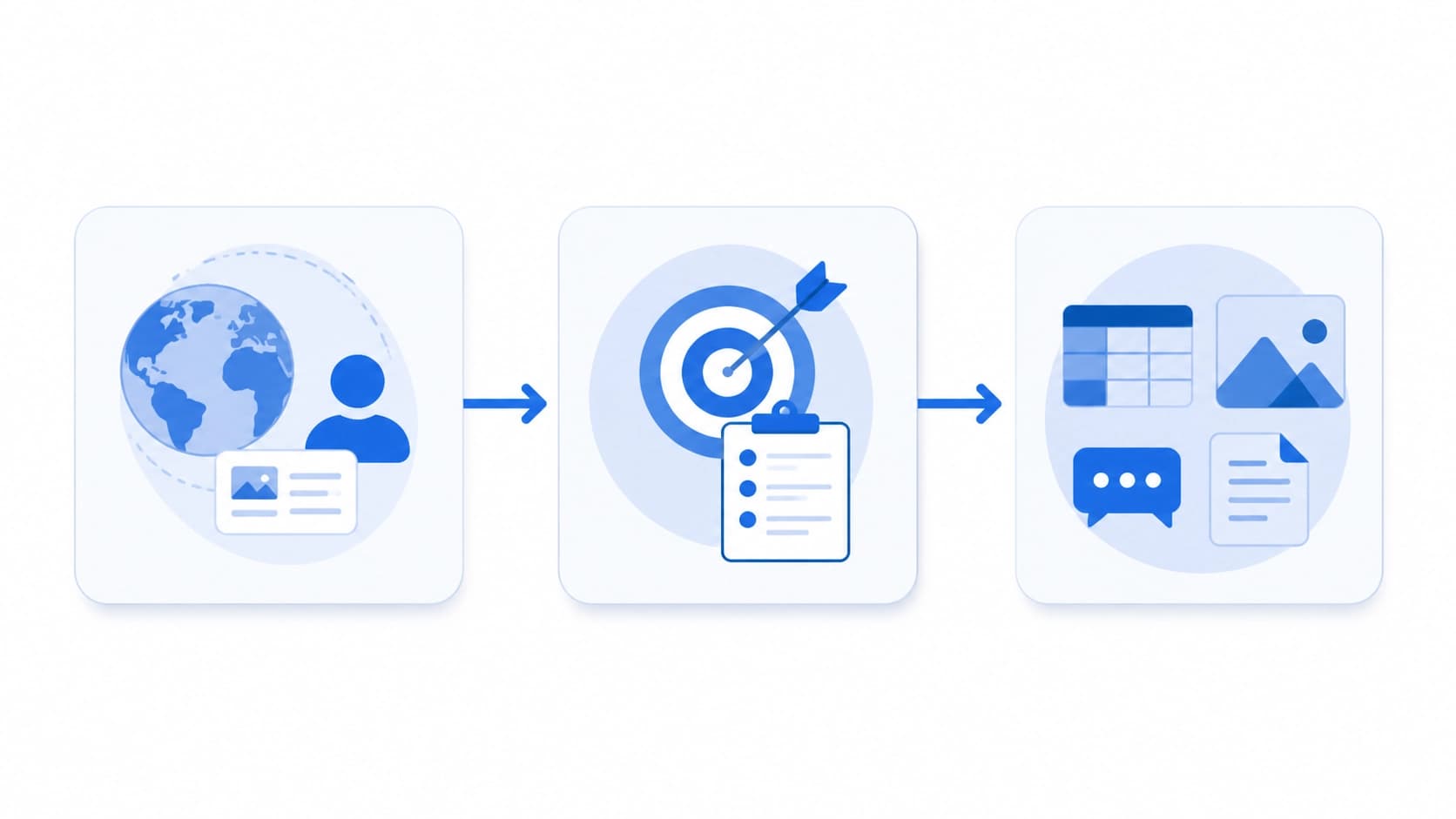
When composing prompts, use the contextual prompting method: first describe the situation, then formulate the task, and after that specify the desired response format. For example: "I am the owner of a small cafe in a residential area of [city]. Write five ideas for attracting new customers through Instagram. Format each idea as a separate item with a heading and a brief description." This approach structures the answer and makes it applicable in practice.
 ### Working with documents and files
Paid plans support file uploads—from text documents and PDFs to spreadsheets. This opens up a wide range of possibilities: you can upload a long report and ask the model to highlight key metrics, upload a contract and ask it to find potentially dangerous clauses, upload a data table and ask it to build a summary.
An interesting feature: ChatGPT doesn't just read the file, it can also interact with it—for example, calculate sums, find duplicate records, or convert a table to another format. You can upload a photo of a restaurant menu and ask it to recalculate the calorie content of dishes or make a shopping list based on that menu.
Voice control
The ChatGPT mobile app supports voice input, not only through the phone's built-in keyboard, but also through direct voice conversation with the model in conversation mode. This is convenient when you need to record an idea while on the go, or when typing a long text is inconvenient. Voice mode is activated in one click via the microphone icon in the app interface. The model doesn't just recognize speech—it carries on a full conversation taking the context into account.
Step-by-step guide: how to customize ChatGPT for your tasks
To use all the service's capabilities effectively, follow these instructions. They will help you set up the tool from scratch and adapt it to your specific tasks.
- Register or log in to the system through the browser on the official website, or download the app for iOS or Android.
- Go to your account settings (the profile icon at the bottom of the sidebar) and check whether a paid subscription is active if you plan to use it.
- Set your preferred interface language in the "Settings" section—choose Russian or another convenient language.
- Configure privacy: in the data management section, disable chat history saving if it's critical for your work, or leave it as is.
- Set up the model's memory: add a few facts about yourself in the "Memory" section, such as your profession, areas of interest, or a list of current projects—this will help you get more relevant answers.
- Start your first test conversation: don't ask complex questions—just say hello and ask what the model can do. This will help you understand what the AI is capable of in your configuration.
- Choose a suitable response style: in a new conversation, ask the model to respond briefly or in detail, formally or informally—and it will stick to that style throughout the conversation.
- Upload your documents to the chat if you plan to work with them—this will immediately demonstrate the file analysis capabilities.
- Set up keyboard shortcuts in the web version if you work with large amounts of text—this will speed up editing and formatting.
- Test how voice input works in the mobile app if you're often on the move.
After completing these steps, you'll have a working tool adapted to your needs. But remember: customizing a chatbot is an ongoing process. As your tasks change, change your prompts and interaction rules too.
 Common beginner mistakes and how to avoid them
Many users become disappointed in ChatGPT after their first unsuccessful attempts, but most often the problem is not the model but the way they use it.
The first common mistake is expecting absolute factual accuracy. The model is not a search engine. It generates plausible answers based on training data and can make mistakes, especially regarding current events. If you need factual information, ask about old, widely known facts or verify the data through search engines and specialized resources.
The second mistake is expecting an answer to a "bad" request. If the model didn't understand what you meant, it will either ask for clarification or give a generic answer. Don't be afraid to rephrase your question, adding more details. A good prompt is half the battle.
The third mistake is ignoring the model's capabilities. Users use ChatGPT only for text generation, without trying to work with files, images, or analytics. Explore all the features available on your plan—many of them can really surprise you.
Finally, don't forget about security. Don't upload confidential personal data, passwords, or commercial secrets to the chat, especially on the free plan, where history is stored on the company's servers.
Advanced use cases
For those who have mastered the basics, ChatGPT offers several advanced scenarios. For example, you can use the model as a personal tutor: upload a textbook on a topic you're interested in and ask the model to explain each section, ask test questions, and check your answers. This works especially well for languages and programming.
Another advanced scenario is using the model to generate prompts for other AI models. You can ask ChatGPT to write a detailed prompt for generating images in Midjourney or get a template for articles in another AI system. The model, trained on millions of examples, is excellent at creating structured requests.
Also, the model is useful for automating routine tasks: writing standard letters, preparing spreadsheet templates, creating summaries. Instead of spending an hour on a routine task, you can spend half an hour writing a good prompt that describes the workflow, and then use it over and over again.
ChatGPT is not a magic pill, but a tool that requires understanding and practice. Start small, gradually explore new features, and soon you'll wonder how you ever managed without this assistant.