
What is Leonardo.ai
In recent years, neural networks have firmly entered creative professions, and generating images from text descriptions has become common practice. One of the most popular services in this field is Leonardo.ai. It's an online platform that turns a simple text prompt into a ready-made set of images. You don't need to know how to draw or understand complex editors — just formulate your idea and choose the right parameters.
The platform is aimed at a broad audience. A beginner can get their first result within minutes of signing up, while a professional can use the service for quick concepts and iterative work. The interface stays intuitive: all key features are visible, and the generation process is broken down into simple steps.
What's especially nice is the wide variety of styles available. Photorealism, anime, 3D animation, concept art, and even stylization after specific artists (within reasonable limits). The same prompt can produce completely different results depending on the selected model, so it's worth spending time on experiments early on.
Registration and first login
To get started, go to the official Leonardo.ai website. On the homepage you'll see buttons like "Create an account" or "Start using Leonardo" — both lead to the registration form. The service supports sign-in via Apple, Google, Microsoft accounts, as well as classic email registration. If you choose email, a confirmation link will be sent to the address you provide. Click it, and your account will be activated.
It's worth knowing that access to the platform sometimes isn't granted instantly. If you end up on a waitlist, an invitation will be sent to your email later. This isn't a bug but a common feature of many AI services: it's how developers manage load and gradually expand their user base.
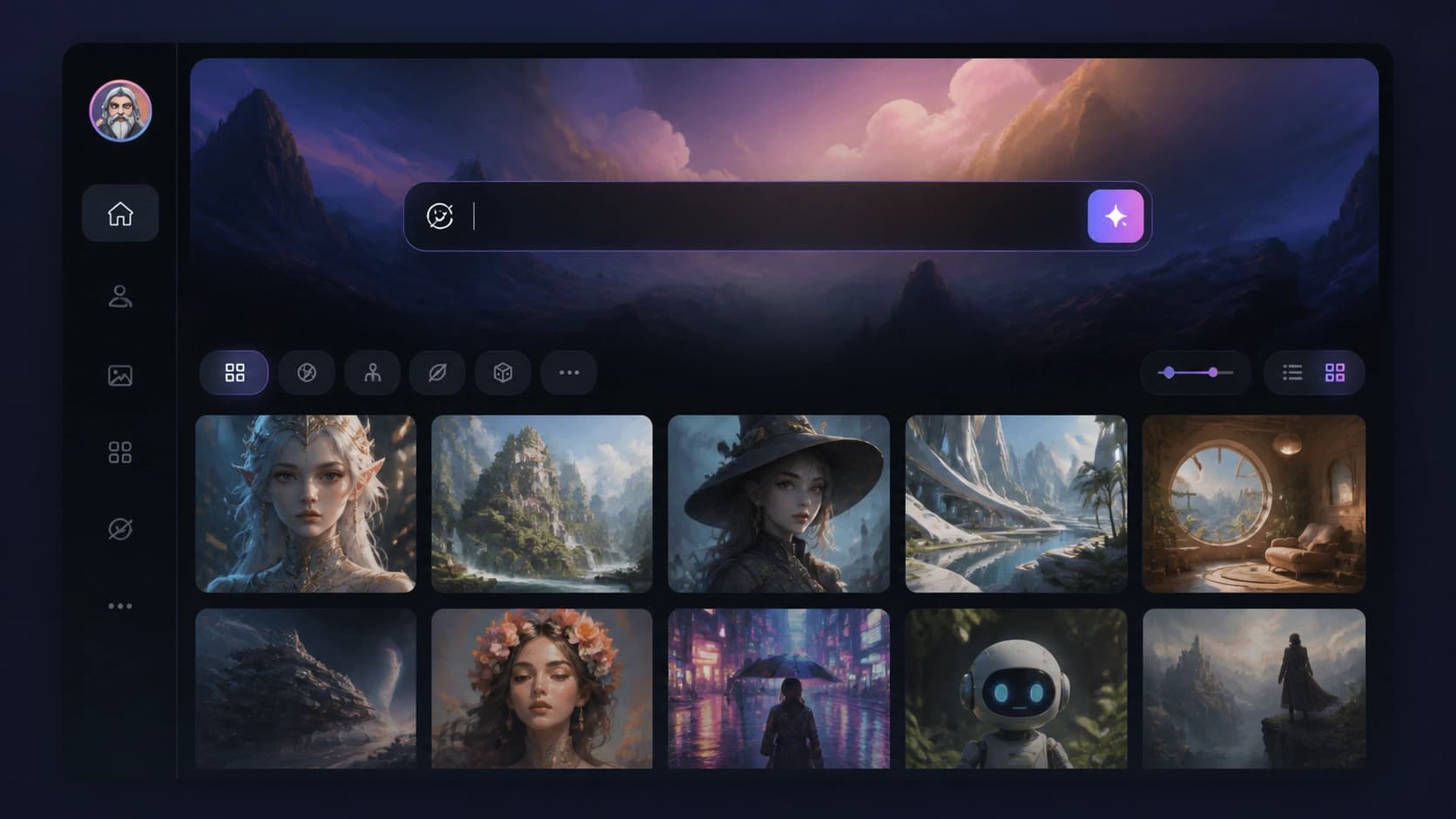
After logging in, you'll find yourself in the workspace. Everything you need is here: the generation page, canvas editing tools, a gallery of your works, and model settings. The sections are placed in the top menu and sidebar, so it's easy to navigate even without hints.
An important point — pricing plans. Leonardo.ai has a free plan with a daily token limit. This is convenient for a first impression: you can test the service without spending money. Paid subscriptions add more tokens, speed up generation, and unlock additional features like priority request processing.
How to create an image: step-by-step guide
The generation process in Leonardo.ai is extremely beginner-friendly. Let's break it down into specific steps so nothing gets missed.
Step 1. Go to the Image Generation section
After logging into your account, find the "Image Generation" item in the interface — it's usually located in the top menu or on the sidebar. Click it to open the generation workspace. This is where all the settings we'll fill in are gathered.
Step 2. Write your text prompt
In the central text field, enter a description of the image you want. For a first experiment, a simple prompt like "an orange cat by the window sill" works well. Tip: it's better to write prompts in English, since neural networks are mostly trained on English-language data. Russian works too, but results may be less accurate.
The more detailed the description, the more predictable the result. Try specifying not just the subject but also the environment, lighting, mood, and style. For example: "a cozy room with an orange cat on the windowsill, morning light, photorealistic". But don't overload the prompt — sometimes extra details confuse the model.
Step 3. Choose a model and style
Next to the prompt field is a dropdown list of models. For a beginner, Leonardo Diffusion XL is a great starting point — a versatile model that handles most standard requests. If you want an image in the spirit of 3D animated movies, check out 3D Animation Style. There are dedicated models for anime and photorealism.
Additionally, you can set a style in the interface — it affects the overall aesthetic: brightness, contrast, artistic techniques. At first, it's better to leave the default value and experiment later.
Step 4. Run the generation
Once the prompt and model are selected, click the Generate button. Generation usually takes 30 to 40 seconds and immediately produces several image variations. This is very convenient: you can pick the best one or send a favorite for further refinement.
Step 5. Download the result
After generation, you'll see a gallery with the resulting images. Each one can be opened in large size, edited with built-in tools, or downloaded directly to your device. The format and resolution depend on your settings, but for most tasks the standard result is more than enough.

Models and styles: how they work
Different models in Leonardo.ai are designed for different visual tasks. Photorealistic models imitate shots taken with a real camera — they're suitable for showcasing products, interiors, or architectural projects. Anime models draw in Japanese style, while 3D models resemble screenshots from modern video games.
It's not just about artistic taste: the choice of model determines how the neural network interprets your prompt. For example, the same request "a futuristic city" in a photorealistic model will give you a photo of a city, while in an animated model it will produce a drawn frame. So before blaming the service for a strange result, try switching the model.
For a beginner, the best way to understand the models is to run a mini-experiment: take the same prompt and run it through all available options. This takes a bit of time but gives you a clear picture of what each model can do. This approach helps you find the right style for a specific task faster.
Where to use generated images
The use cases for Leonardo.ai are practically limitless. Game developers often use the service to create characters, environments, and concept art in the early stages of a project. Marketers use it for social media visuals, ad banners, and email templates. Graphic designers draw inspiration for logos, infographics, and layouts.
Fashion designers generate patterns and sketches for upcoming collections, while teachers create visual materials for lessons and presentations. Even if you just run a blog, this tool makes it easy to get unique illustrations for your posts without spending money on stock photos.
The service is also convenient because it requires no installation and works right in the browser. This means you can use it on any device, from a desktop computer to a tablet. All your work is saved to your account, and you can return to it at any time.
Pricing and limits
As mentioned earlier, Leonardo.ai's free plan works on tokens — the service's internal currency. Each generation consumes a certain number of tokens, and you receive a fresh batch daily. When the balance runs out, you either wait until the next day or switch to a paid plan.
Paid subscriptions solve the limit problem: they increase your daily token allowance, give you priority in the request queue, and unlock advanced settings. For a beginner, the free plan is usually enough to learn the basics and create your first few dozen images. And if you plan to use the service regularly for professional purposes, the paid option will be more comfortable and time-efficient.
It's worth noting that tokens are spent not only on generation but also on image editing. So if you actively use retouching and inpainting, your limit will run out faster. That said, this encourages you to think through your prompt in advance and avoid unnecessary runs.

Conclusion
Leonardo.ai gives everyone — from a school student to a professional designer — the ability to create high-quality images in seconds. Registration takes a couple of minutes, the interface is intuitive without instructions, and flexible models let you experiment with styles. Start with a simple prompt, see how different models react to the same words, and gradually move on to more complex projects. The neural network will handle the routine while you focus on creativity.