
Mastering Ideogram Canvas: How to Work with the Infinite Canvas for Image Generation and Editing
Step by step, we walk through getting started with Ideogram Canvas: upload or create an image, then refine it with Magic Fill and Extend. We also show you how to set up your workspace and use the service's basic features.
What is Ideogram Canvas
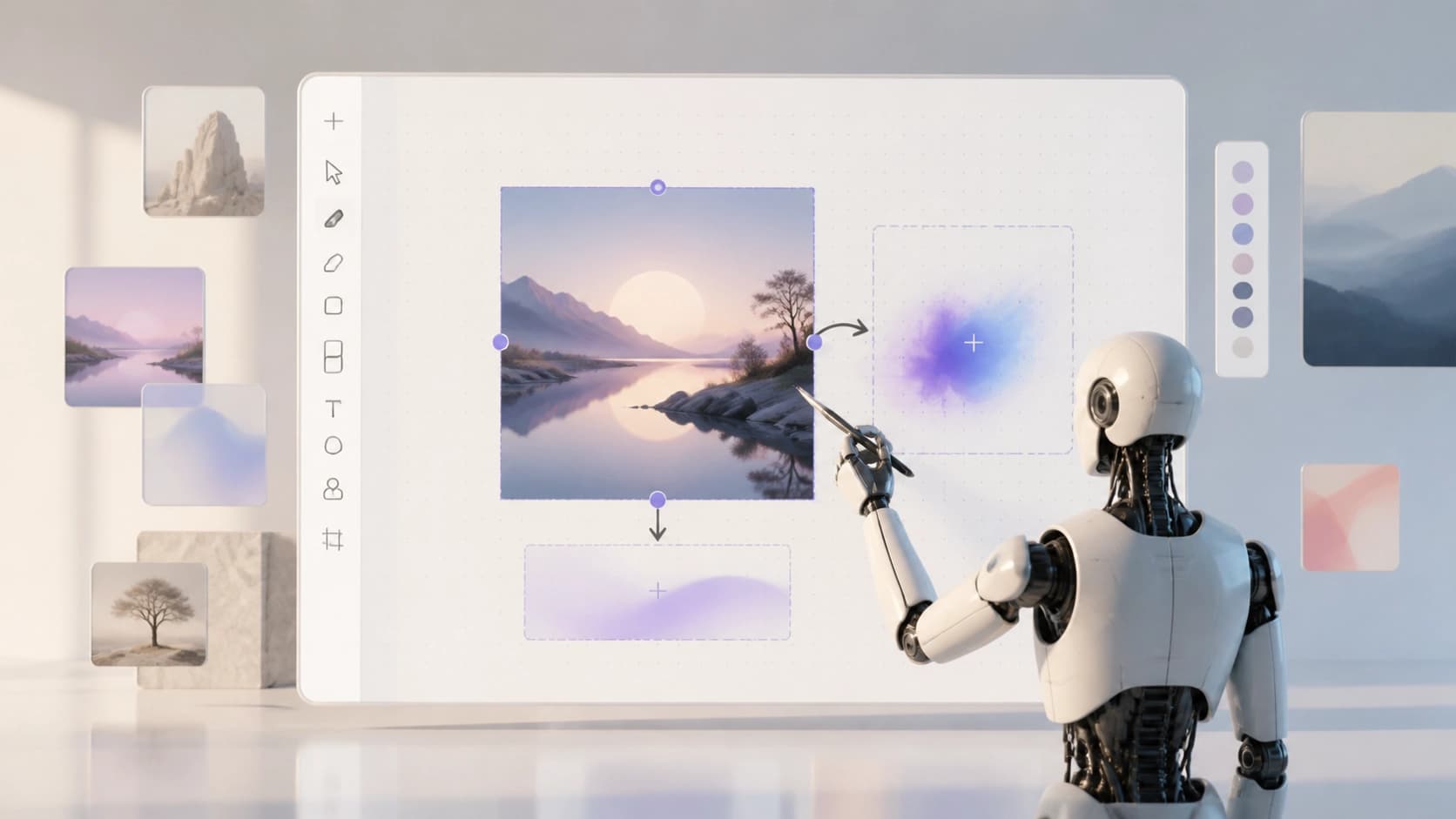
Meet Ideogram Canvas — not just another image generator, but a full-fledged creative studio on an infinite canvas. The developers at Canadian AI startup Ideogram have turned the process of creating images into interactive work with a borderless canvas. You can upload your own files, generate new images from text descriptions, edit individual fragments, and assemble them all into a single composition.
Unlike classic editors, where the canvas size is strictly fixed, here you decide for yourself how far your board extends. This is convenient for mood boards, concept art, posters, and any project that needs to combine many visual elements. Everything happens right in the browser — no installation required.

The key idea is that generation and editing are no longer split across different tools. Instead, you work in a single space, and artificial intelligence helps at every step. Want to replace a bad object in a photo? Add text to an image? Draw in the missing part beyond the frame? — All of this can be done right on the board.
How to get started with Ideogram Canvas
Registration and sign-in
To access Ideogram Canvas, simply go to ideogram.ai. In the top right corner you’ll see the Sign Up button — it opens the registration form, where you’ll need to enter an email and create a password. If you already have an account, use Log In to sign in. Registration takes less than a minute, after which you enter the main interface.
There are no separate apps to download — everything happens in the web browser. This makes the service equally convenient on a desktop, a laptop, or even a tablet with a large screen.
Interface and uploading images
After signing in, you’ll see a left sidebar with the main tools. Among them is the Canvas icon — it opens a new blank canvas. Clicking it creates an infinite board where you can place as many images as you like.
To add your own pictures, use the Upload button or simply drag files into the browser window. There’s also a third way — copy an image to the clipboard and paste it onto the canvas with Ctrl+V. And if you don’t have a ready file, you can immediately generate the image you need from a text description without leaving Canvas.
![Ideogram Canvas interface example with a side toolbar and uploaded images] — there should be an illustration here, but according to the task a strict-form placeholder is required. Correcting: 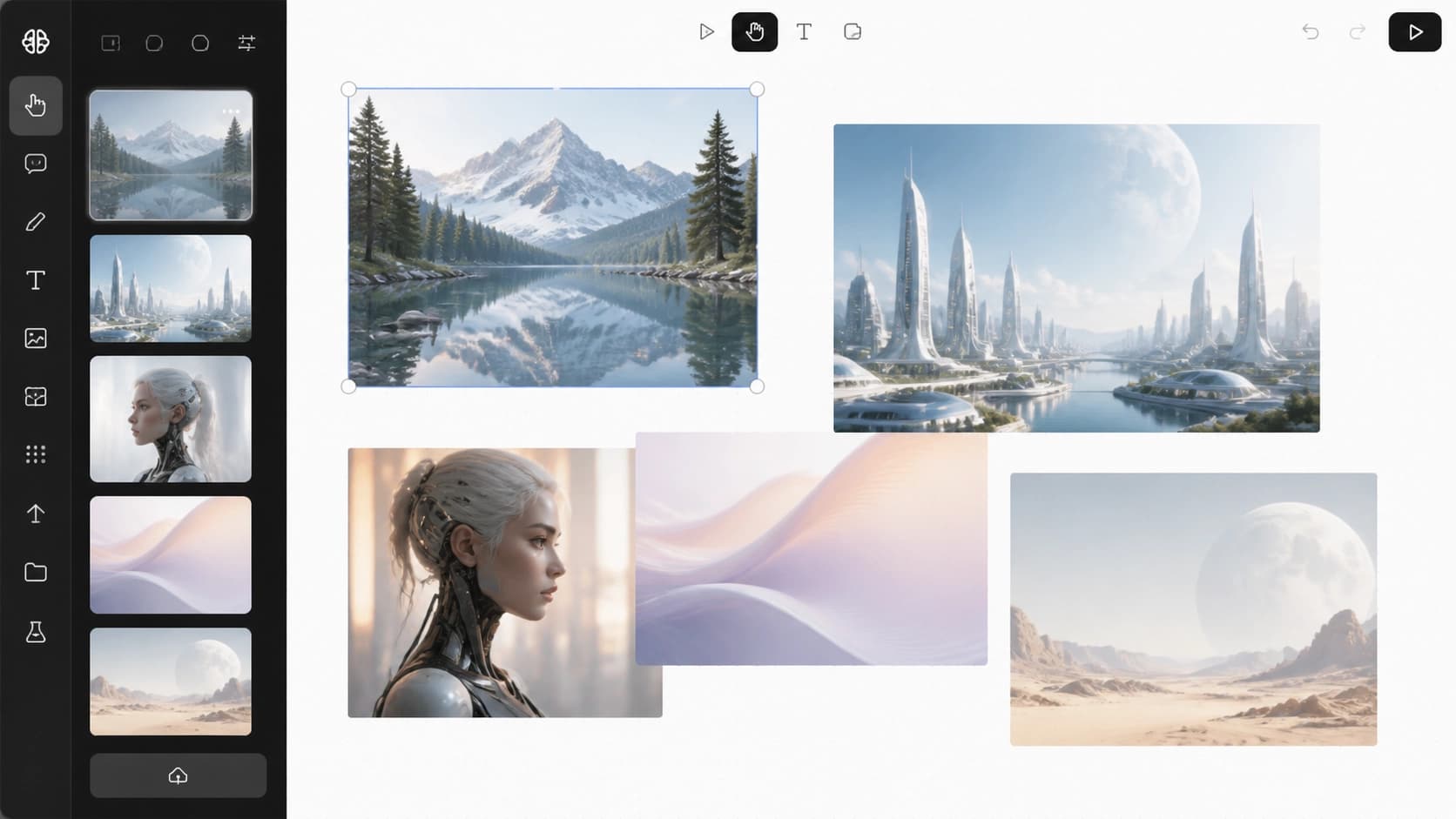
The canvas behaves like an ordinary board: images can be dragged, resized, and layered on top of one another. This is especially useful when you’re putting together a collage or comparing different versions of the same idea.
Key editing tools
Once your images are on the board, the fun begins. The left panel gives you three key tools: Generate, Magic Fill, and Extend. Each one handles its own type of image work.
Generate: creating from scratch
The Generate tool lets you create images from text prompts. You describe what you want in natural language, and the AI generates several variations. This is useful for quick sketches and exploring visual solutions. Prompts can be very detailed: you can specify style, lighting, composition, and color palette. Generated images appear on the board right away, ready for further work.
Magic Fill: making targeted edits to an image
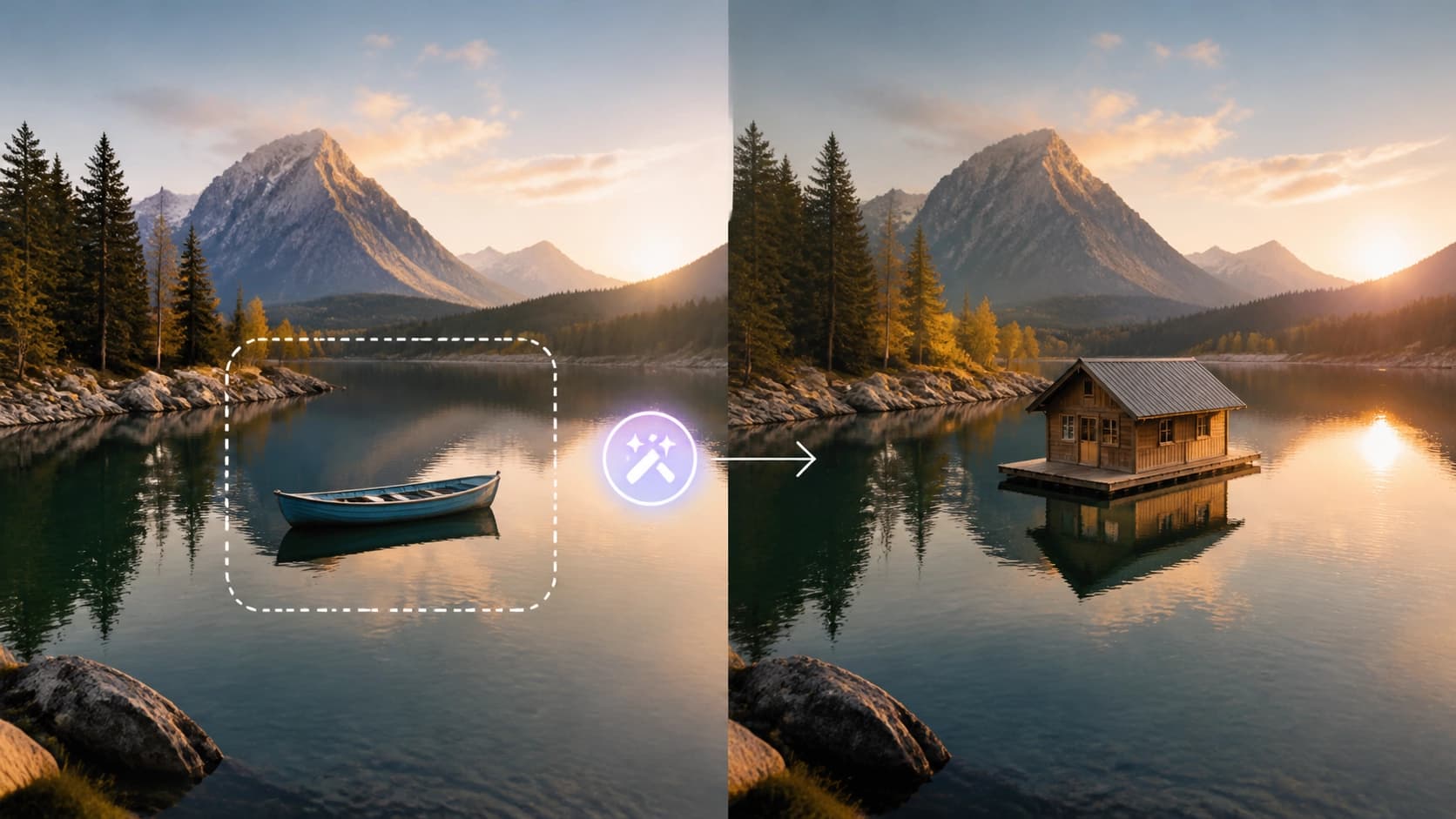
The Ideogram Canvas tool responsible for local edits is called Magic Fill. Its logic is similar to painting over an area, but instead of paint, you use text. You select the part of the image you want to change and describe what should appear there. For example, you can replace the sky with a stormy one, add an object to the frame that wasn’t there before, or fix a small defect like an accidental stain.
The magic is that the AI tries to preserve the overall style of the image, so the result looks natural. You can also add or replace text in an image — this is something Ideogram handles particularly well.
Extend: extending beyond the frame
The Extend tool solves the opposite problem — it draws the image beyond the edges of the original frame. If you have a photo or a generated image that needs to fit another format or be continued as a background, Extend does it for you. The AI analyzes the contents of the original frame and extends it in any direction, trying to preserve the style and detail. The result is a seamless extension — the boundaries of the original file cease to exist, and the image continues naturally onto the board.
This tool is indispensable for creating panoramas, adding space around an object, or adapting images to different aspect ratios.
Tips for working efficiently
- Combine tools. First generate the base, then use Magic Fill to fix details, and Extend to complete the surroundings. This pipeline lets you achieve a complex result without switching between different services.
- Use the infinite board for variations. Create several versions of the same prompt and lay them out side by side — it makes comparing and choosing the best one easier.
- Don’t be afraid to drag things around. Canvas lets you freely move images, change their scale, and adjust layers. This is handy for building a composition before final export.
Conclusion
Ideogram Canvas is more than just an editor. It’s a space where generation, editing, and image composition merge into one intuitive process. With Magic Fill and Extend, you can not only create new images, but also refine existing ones in detail, extending them beyond any boundaries. Getting started is very simple: sign up at ideogram.ai, open Canvas, and let your imagination run wild — the AI will take care of the rest.
Frequently asked questions
Related materials
All materials
Hybrid Image Annotation: Automation Accelerates Computer Vision Model Training
The article describes how pre-labeling with algorithms reduces manual work and improves the cleanliness of training datasets, as well as why selective human verification remains essential. It covers the method’s limitations in challenging shooting conditions and with rare object types.
5 November 2026
GoldiMask Method for Fine-Tuning Diffusion Language Models: Context Selection and Target Weighting
This paper presents GoldiMask, a supervised fine-tuning approach for discrete diffusion language models that selects visible tokens via approximate maximization of a submodular function and assigns weights to remaining targets based on their training utility. Experiments across several models and datasets demonstrate improved average accuracy, gains on reasoning and coding tasks, and fewer parallel decoding iterations on GSM8K and MATH-500 at comparable quality.
30 October 2026
Transformers adds support for running quantized GGUF models on Apple Silicon
The article describes integrating the GGUF format from llama.cpp into Transformers: local inference on Mac, loading models via the library API, and running an OpenAI-compatible server. Using Qwen3.5-4B as an example, it shows how the choice of quantization level affects weight size and memory requirements.
18 October 2026