Generative graphics tools are evolving rapidly, and one of the most prominent new additions to the Google ecosystem is the Nano Banana mode integrated into the Gemini interface. Unlike classic text-based dialogues, this tool is focused on visual creativity: it lets you create, edit, and transform images directly through the neural network's chat window. In this guide, we'll walk through how to get access to the feature, tailor it to your tasks, and use it effectively for everyday projects — from creating concept art to quickly retouching photos.
What is Nano Banana and how is it different from regular Gemini
Nano Banana is a specialized image generation module built into the Gemini chatbot interface. While the standard mode responds with text and links, this mode shifts the focus entirely to working with graphics. The name stuck because of the feature's distinctive "yellow" icon, but under the hood there's a powerful neural network capable not only of generating images from scratch, but also of editing files uploaded by the user.
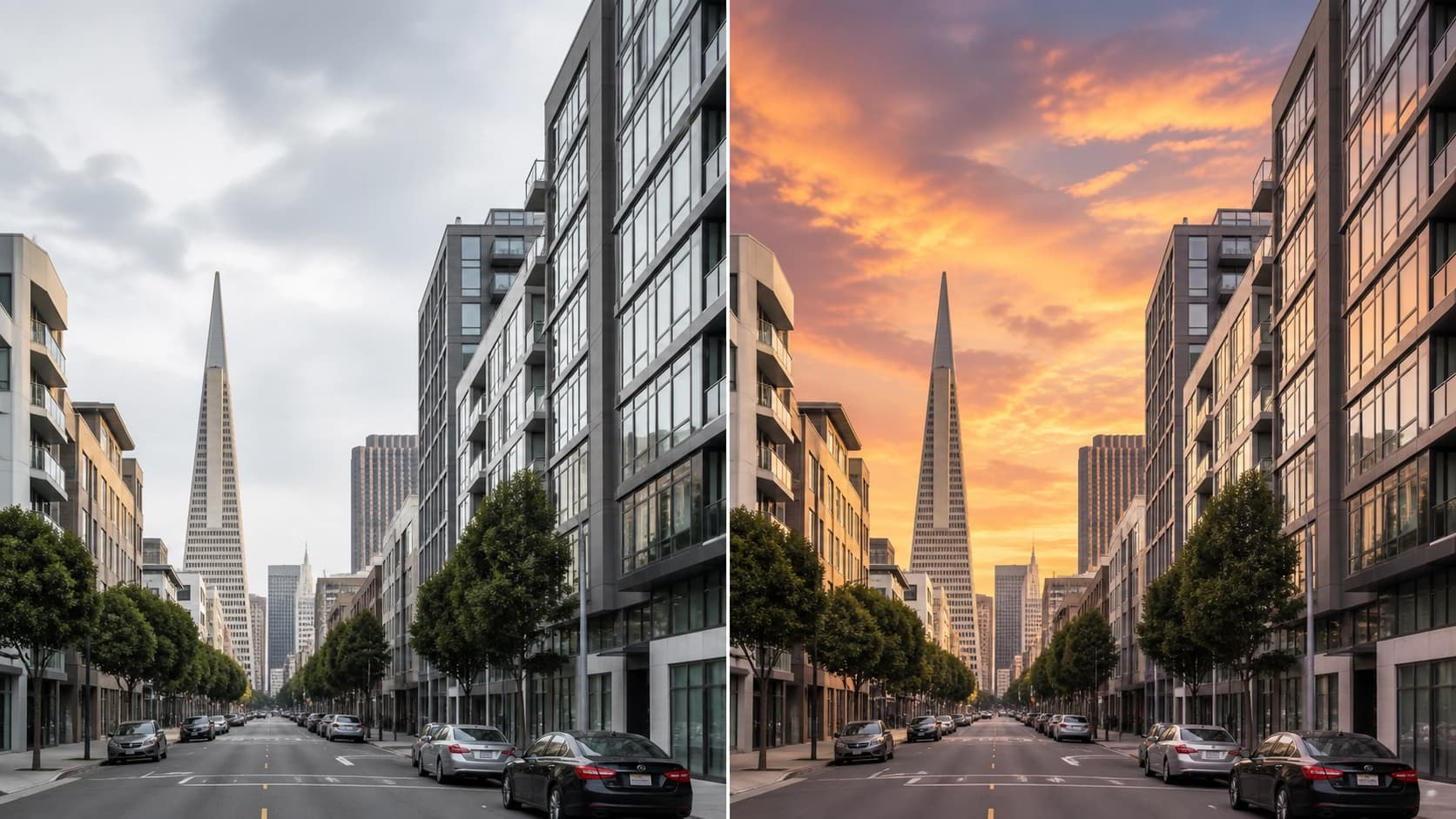
The key difference from conventional generators is deep integration with the dialogue context. You can give the command "finish the background" for an uploaded photo, then in the next message ask to change the lighting to evening, and the model will keep the subject in the frame unchanged while altering only the surroundings. This brings the tool closer to a full-fledged graphics editor where control happens through natural language rather than tool panels.
How to get access to the feature and get started
Before diving into creative work, you need to make sure your account supports this capability. The feature is available both in the browser web version and in the mobile app, though the activation flow may differ slightly depending on the platform.
To activate the mode in the web version:
- Go to the Gemini website and sign in.
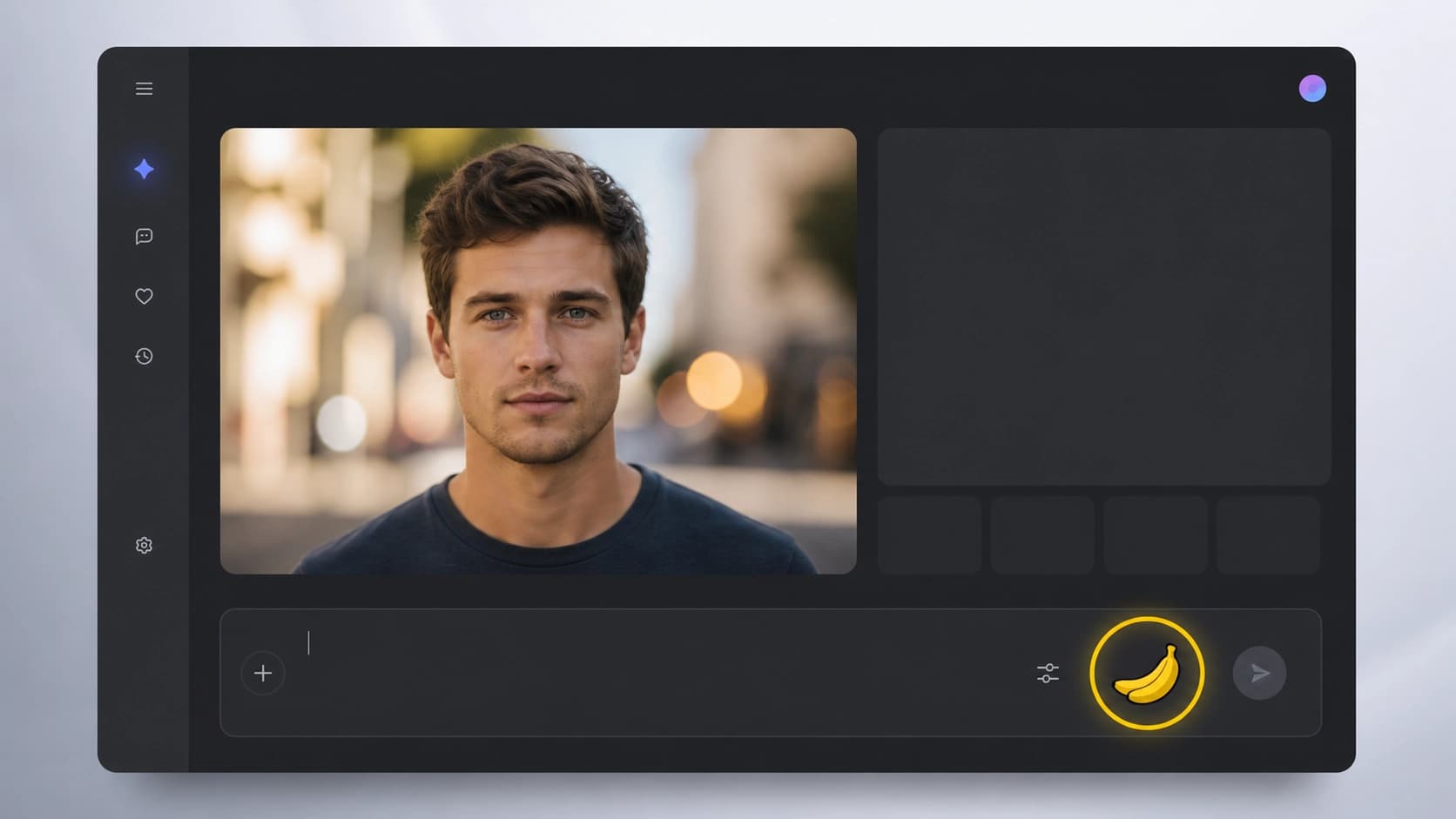
- Find the input field for a new message.
- Below the input field, look for the mode switcher or a yellow icon (banana/palette). Click it to activate the visual mode.
- In the mobile app, a similar option is usually located in the bottom horizontal bar of quick tools.
Keep in mind that full-featured work with uploaded files may require a paid subscription or a higher request quota. The free tier typically provides a limited number of runs per day, while extended plans offer longer sessions without a hard limit. Exact quota volumes change dynamically, so it's best to check the latest numbers on the provider's official website.
Step-by-step guide to creating and editing images
Working with Nano Banana is iterative: you give a command, get a result, then refine details right in the same dialogue thread. Here's a typical usage scenario.
Generating a new image from scratch
- Write as detailed a prompt as possible. The model handles long descriptions, lists of objects, styles, and artistic techniques well.
- Enter a request in the text field such as "draw a plate of carbonara pasta in food photography style, dark background, steam rising."
- Wait for the output. Usually a single high-resolution image appears, unlike some other models that generate grids of four options.
- If the result isn't satisfactory, enter a corrective message: "change the angle so the plate is viewed from above" or "make the portion bigger."
Editing an uploaded photo
One of the mode's strongest sides is manipulating existing shots.
- Upload the file via the "plus" button in the input field.
- Describe what needs to be done. You can ask to "remove tourists from the background," "enlarge the pupils," "add a sunset sky," or "replace the black t-shirt with a red one."
- The model uses generative AI to change pixels precisely in the specified area, trying to keep the structure and people's faces untouched.
- Subsequent edits apply to the previous result, so you can gradually "sculpt" the desired frame.
 Fine-tuning style and output parameters
Although control happens through natural language, there are a number of marker words that improve how accurately the result matches expectations.
Stylistic prompts
Adding specific techniques or materials to your request affects the final render. Popular approaches include:
- "in watercolor style," "oil painting," "pencil sketching" — change the digital "texture";
- "holographic effect," "neon glow," "cyberpunk" — set the palette's mood;
- "macro shot," "drone view," "35mm film with grain" — emulate camera characteristics.
Working with proportions and aspect ratios
The tool rarely supports arbitrary resolutions. However, you can influence the frame format with phrases like "vertical composition," "wide banner," or "square." The model will adjust the generation area to the requested proportion, which is convenient when preparing avatars or social media covers.
Batch generation of variations
At the moment, the interface doesn't offer a one-click "create variations" button. Still, you can achieve the same effect by asking "show another version but with a different hair color" or "make an alternative version without the logo." The system will generate a new set of points based on the request.
Comparison with other Google tools
Nano Banana exists within Google's infrastructure alongside other generative AI products. In a single Gemini interface, different models can be present, handling text (for example, standard language models) and images. Users often confuse Nano Banana with the editing features in Google Photos, but the working principles are fundamentally different: Photos' signature feature works with user photos locally, while Nano Banana is a conversational tool that "thinks" within the context of the conversation.
In addition, there are external generators from competitors, such as DALL-E or Midjourney. Comparison shows that Nano Banana is especially strong at editing photos of real people, as it's less prone to distorting facial features during retouching. However, in complex compositional artwork with many small details (for example, an illustration with a crowd of characters), it may lag behind specialized models.
 Typical mistakes and how to fix them
When working with any neural network, situations arise where the result doesn't look as expected. Understanding the model's mechanics helps quickly adjust the request.
Distortion of hands and small objects
Although 2025 brought significant improvements, complex interlocking fingers can still cause artifacts. If you notice the wrong number of fingers, try rephrasing the description: instead of "a hand holding a book," write "a close-up of a hand gripping a book cover, fingers partially visible." Problems with text on signs are less common — the model draws abstract letters.
Losing the original after a series of edits
If you've made several changes in a row and then asked to "put it back as it was," the system may not understand which exact point in the history you want to roll back to. The solution is to always re-upload the original or keep dialogues as short chains, creating a new chat for each major iteration.
Slow processing and timeouts
On large images (especially 4K), generation can take up to 30–60 seconds. If the request is large, it's better to break it into several steps to avoid connection drops. You should also avoid running two generations simultaneously in different browser tabs — this can lead to a quota block.
Use cases in everyday life and work
[paste_image3]
The mode's versatility opens up broad opportunities for everyday scenarios beyond simple entertainment.
Design and marketing
Creating banners for social networks, resizing creatives for different formats, removing backgrounds from product photos — all of this can be solved with text commands. Freelancers use this tool to generate mood board ideas. You no longer need to search for licensed stock images — just describe the desired picture in words.
Education and professional tasks
Visualizing concepts for presentation slides, creating diagrams and infographics by hand takes a lot of time. Nano Banana lets you turn abstract text descriptions into clear visuals. For example, you can ask to "draw Maslow's pyramid in a minimalist style with a beige background" and paste the result directly into a document.
Entertainment and communication
The tool is popular for creating avatars, memes, and greeting cards. The "revival" feature for old family photos looks especially interesting: the neural network can add a smile or open eyes in shots where people blinked. Don't forget about ethical constraints — using such edits to forge documents or mislead anyone is prohibited by the service's rules.
Tips for working effectively with prompts
To get consistent results, follow simple recommendations for building your dialogue. Try to write prompts in English if you're using the international version of Gemini — the Russian localization understands requests somewhat worse due to model training specifics. Phrase sentences in the imperative mood: "add," "transform," "remove." Avoid abstract adjectives like "beautiful" — use specifics: "symmetrical," "bright lighting," "pastel tones."
Refresh the page in your browser regularly to get access to new model versions that are automatically deployed on Google's servers. Follow news on the official Google DeepMind blog for information about key updates. If you need to keep your processing history, use chat export or archiving methods, as sessions can be deleted after a long period of inactivity.
Common use cases for Nano Banana
Over time, every user develops their own set of prompt templates that work best. Here are several proven directions where the tool delivers exceptional results.
- Restoring old photos: color restoration, scratch removal, sharpening faces.
- Creating illustrations for articles: generating covers with thematic visual metaphors.
- Interior design: visualizing furniture rearrangement or wall color choices from a photo of a room.
- Avatar styling: creating a unified style for corporate employee profiles on social networks.
By 2025, Nano Banana in Gemini has become a serious bid to turn generative editing into a familiar tool for the majority of users. The market will keep evolving, but already now we see how natural language is breaking down the barriers between complex software and the everyday user.