

Why you need Grammarly and what it can do
Have you ever wondered how many mistakes you can miss in an ordinary text if you rely only on the built-in spell check? Grammarly is an intelligent assistant that takes on the analysis of what you've written and suggests how to make the text more literate, clearer, and more appropriate in tone. It works in real time: as you type, the service highlights problem areas and offers corrections.
The project was launched in 2009 — it was created by Alex Shevchenko, Max Lytvyn, and Dmytro Lider. Since then, the tool has grown significantly and is now available in various formats: browser extensions for Chrome, Firefox, Safari, and Edge, desktop applications for Windows and macOS, as well as built-in integrations with Google Docs and Microsoft Word. There is both a free version and an extended premium plan.
The main value of the service is not just fixing errors, but helping you achieve the goal of your text. The tool evaluates clarity, engagement, and tone, so it suits not only business correspondence, but also blogs, academic papers, and personal messages.
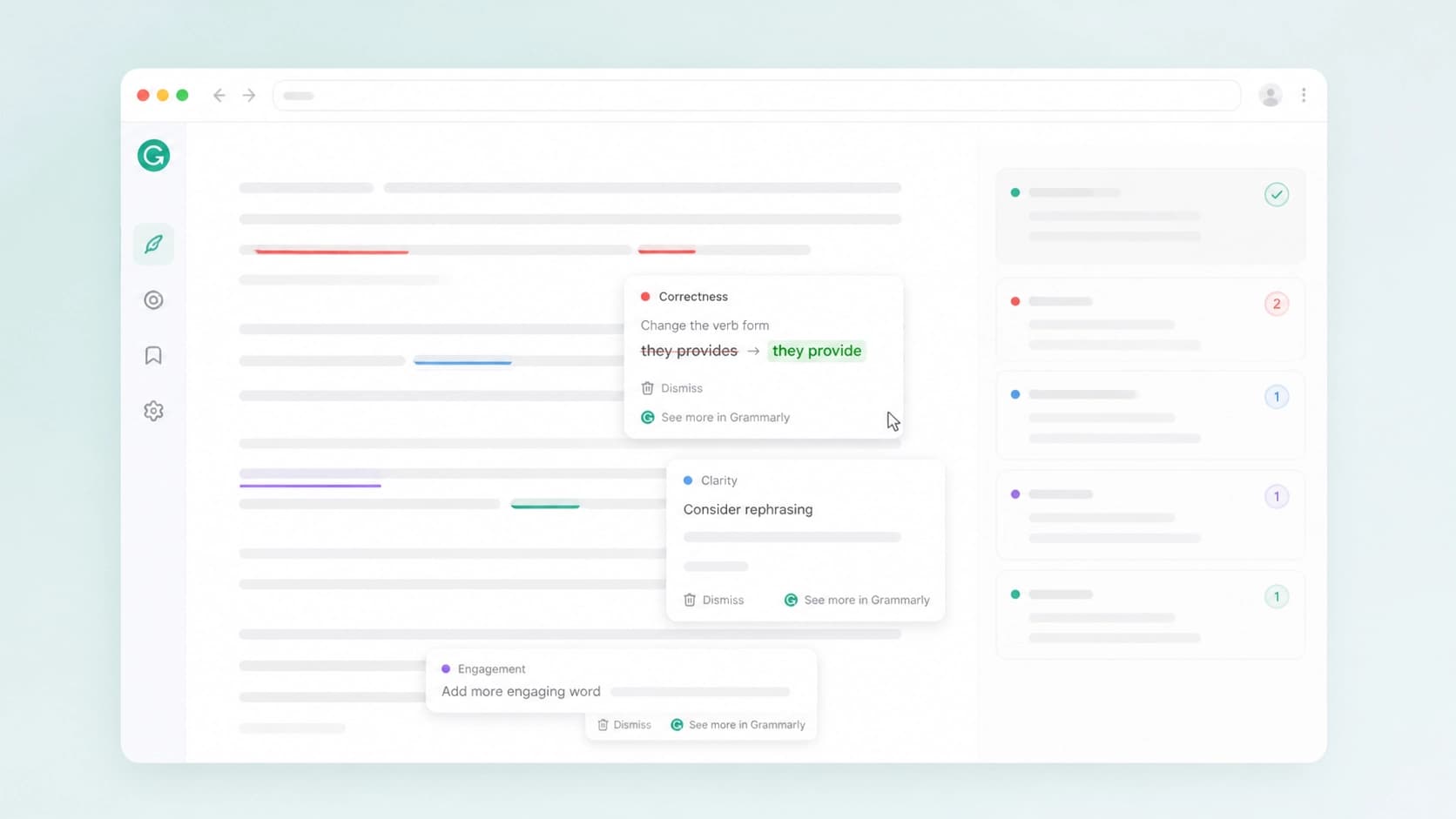
Step-by-step setup
To start using the service, you just need to go through a few simple steps. Below is a detailed guide to help you set everything up from scratch.
Creating an account
To work with Grammarly, you will first need a user account. Go to the service's official website and open the registration page. You can use a work or school email as your login — this is convenient if you plan to connect a corporate account later. Create a password of at least eight characters, enter your name, and check the box to agree to the Terms of Use and Privacy Policy.
After filling out the form, you will need to pass a CAPTCHA check and click the registration button. A confirmation email with a link will be sent to the specified address — follow it to activate your account. You can also sign in via Google or Facebook, which makes the process even faster.
Choosing a platform and installation
After creating an account, decide where you prefer to work. The fastest way is to install a browser extension: find the Grammarly app in the Chrome, Firefox, or Safari web store and click the “Install” button. The extension will automatically appear in the browser toolbar and will be enabled on most sites with text input fields.
If you prefer to work offline, download the desktop application for Windows or Mac. It installs like a regular program and is accessible from the system tray. For those who constantly write in Google Docs or Word, there are special plugins — they integrate directly into the document interface and don't require switching between windows.

Setting writing goals
Before you start writing, it's worth setting your text parameters. In the editor or desktop app, there is a settings section where you can specify the target audience, formality level, desired tone, and intent (for example, to persuade, inform, or entertain). These parameters allow the service to give more accurate advice: the same text can be assessed differently depending on who it is intended for. Spend a couple of minutes on the setup — the quality of recommendations will noticeably improve.
Everyday use
Once everything is set up, the most interesting part begins — daily work with text. You can use Grammarly in two ways: write directly in the built-in editor or paste ready-made material from another document. If you work in a browser, the extension automatically activates in input fields, email clients, and social networks — for example, when writing a post or comment.
Words and phrases that need attention are underlined in different colors. Hover over a highlighted fragment to see a suggestion: an explanation of the error, a correction option, and an “Accept” or “Reject” button. You can accept suggested edits one at a time or ignore them — the decision is always yours.
The tool is especially useful when working with long documents: it not only catches typos, but also points out awkward phrasing, repetitions, and overly complex sentences. This helps make your text cleaner without spending time on manual proofreading.

Additional premium features
In the free version, basic spelling, punctuation, and grammar checks are available. For deeper analysis, however, it's worth paying attention to the paid features. Among them is plagiarism checking: the service compares your text with millions of pages on the internet and points out borrowed content. This will be useful for students, copywriters, and anyone who works with unique content.
Another premium option is the tone detector. It analyzes how a reader might perceive a message: friendly, formal, skeptical, or, on the contrary, too categorical. Before sending an important email, it's useful to make sure the tone matches the situation — this helps avoid misunderstandings.
Practical tips
The most important tip is not to neglect setting writing goals. Many users leave the default parameters and get generic recommendations that don't always fit the task. By spending a minute choosing your audience and formality level, you'll make the tool significantly more effective.
Also, try to analyze the suggested edits rather than just accepting them automatically. Grammarly is a helper, not a replacement for your own editorial intuition. Sometimes the suggested option is better than the original, and sometimes it's just an alternative that isn't suitable in all contexts.
And finally, use the extension everywhere you can: in email, messengers, and project management systems. This will help you maintain a high level of literacy even in short messages, without forcing you to open the editor separately for every little thing.