
GPT Engineer: step-by-step guide to working with the AI code generator
Explaining how to run GPT Engineer in the cloud or locally, connect an API key, and turn a plain text description into a ready-made app prototype. We break down the core commands, project formats, and useful settings to speed up development.

What is GPT Engineer
GPT Engineer is an AI tool that turns a project description in natural language into working code. Instead of writing every line manually, you explain what you want, and the tool suggests a ready-made implementation. If needed, it asks clarifying questions to better understand the task.
The tool supports different programming languages and frameworks, and the output can be adapted to your coding style. This makes it convenient for quickly prototyping web applications, building dashboards, educational materials, personal assistants, portfolios, landing pages, and internal corporate services.

Working through the web platform
The easiest way to get started with GPT Engineer is the cloud version at gptengineer.app. You need to sign up, add your OpenAI API key, and describe your project in the text field. After that, the service generates code that you can review and deploy with literally one click.
This approach is convenient when you don't want to deal with a local environment: everything happens in the browser, and the result is ready to use right away.
Local installation
For those who prefer to work in their own environment, there is a local version. The stable release is installed with a simple command:
bash python -m pip install gpt-engineer
If you need the latest dev version, you'll have to clone the repository:
bash git clone https://github.com/gpt-engineer-org/gpt-engineer.git
Then navigate to the project folder and install dependencies via Poetry:
bash poetry install poetry shell
After installation, you need to set up the API key. This is done through an environment variable:
bash export OPENAI_API_KEY=[your key]
Or via a .env file with the line OPENAI_API_KEY=[your key].
How to create a project
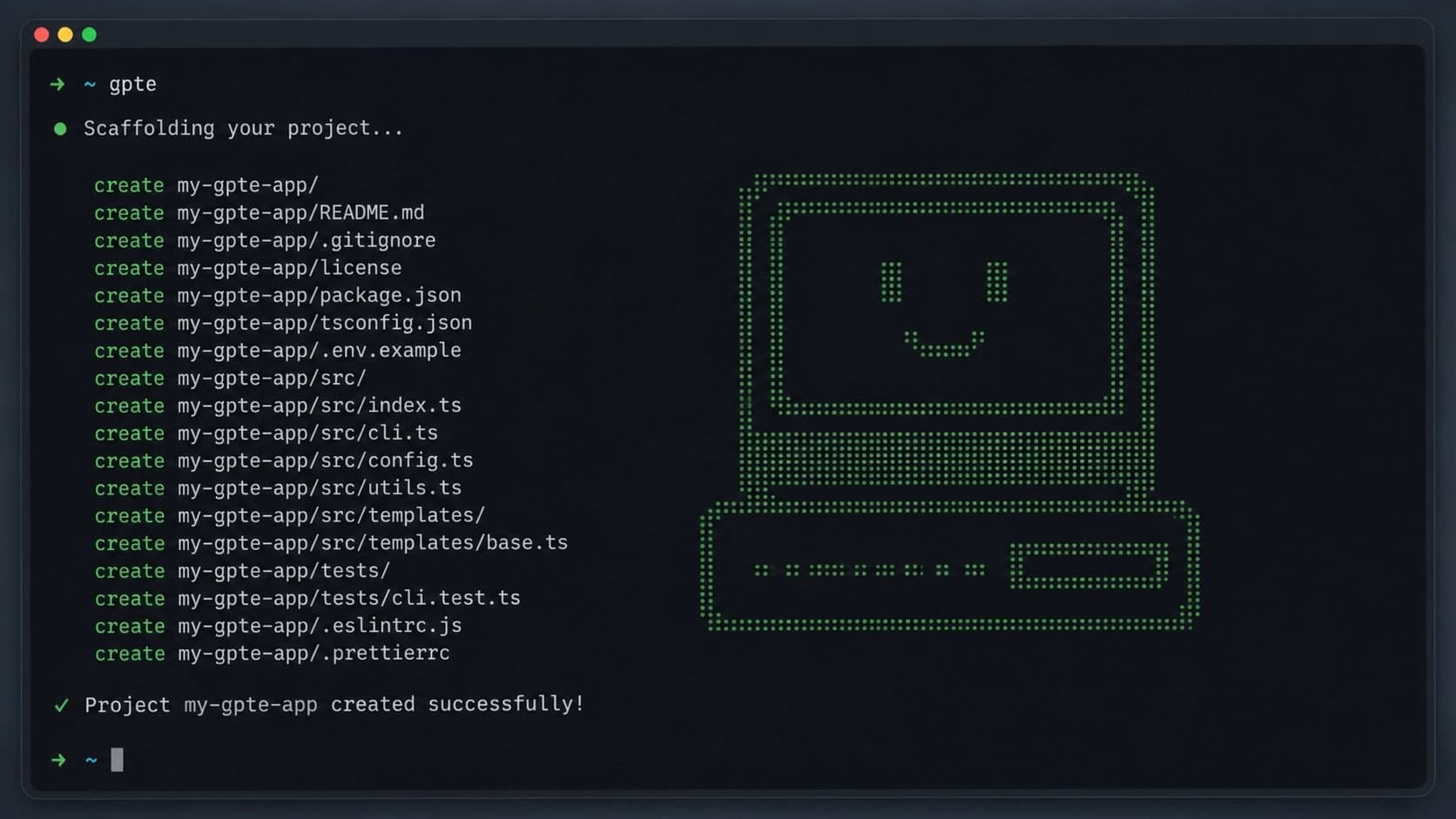
All you need is to create an empty folder and put a prompt file in it. This file describes in natural language what exactly needs to be built. Then run the command:
bash gpte
GPT Engineer will analyze the description and generate the code. If you want to improve an existing project, use the -i flag:
bash gpte -i
This mode lets you make changes to the current code instead of creating everything from scratch.
Customizing it to your needs
One of the advantages of GPT Engineer is the ability to customize the preliminary prompts. You can set your own rules, code style, or additional requirements that the tool will take into account during generation. This helps you get results closer to your standards and reduces time spent on subsequent edits.
Conclusion
GPT Engineer is a flexible assistant for quickly creating code from a description. It suits both beginners who want a working prototype without diving deep into all the details, and experienced developers who need to save time on routine tasks. The cloud version lets you start in a couple of minutes, while the local version gives you full control over the process and the ability to fine-tune everything.
Frequently asked questions
Related materials
All materials
Hybrid Image Annotation: Automation Accelerates Computer Vision Model Training
The article describes how pre-labeling with algorithms reduces manual work and improves the cleanliness of training datasets, as well as why selective human verification remains essential. It covers the method’s limitations in challenging shooting conditions and with rare object types.
5 November 2026
GoldiMask Method for Fine-Tuning Diffusion Language Models: Context Selection and Target Weighting
This paper presents GoldiMask, a supervised fine-tuning approach for discrete diffusion language models that selects visible tokens via approximate maximization of a submodular function and assigns weights to remaining targets based on their training utility. Experiments across several models and datasets demonstrate improved average accuracy, gains on reasoning and coding tasks, and fewer parallel decoding iterations on GSM8K and MATH-500 at comparable quality.
30 October 2026
Transformers adds support for running quantized GGUF models on Apple Silicon
The article describes integrating the GGUF format from llama.cpp into Transformers: local inference on Mac, loading models via the library API, and running an OpenAI-compatible server. Using Qwen3.5-4B as an example, it shows how the choice of quantization level affects weight size and memory requirements.
18 October 2026