

What it is
Adobe Firefly is an ecosystem of generative AI models from Adobe. The service creates, edits, and enhances content from plain text descriptions: from single images to vector graphics and ready-made layouts. A key feature is that it's trained on copyright-free materials, so results are suitable for commercial projects without fear of infringing anyone's rights.
It's important to note that Firefly doesn't exist separately from Adobe's other products: the models are built into Photoshop, Illustrator, and Adobe Express. For example, the Generative Fill tool lets you paint over an unwanted area in a photo, describe in words what should appear in its place, and get a neatly edited image.
How to get access
Previously, Adobe Firefly worked by invitation: you had to submit a request and wait for an email. The process remains, but getting in is easier now. Go to firefly.adobe.com and sign in with your Adobe ID. If you don't have access yet, click "Request Access," fill out the form — name, email, country, and optionally your reason for using it — and submit. You'll receive an email with a link to activate beta access.
Main use cases
Adobe Firefly comes in handy in several typical situations.
Text to Image
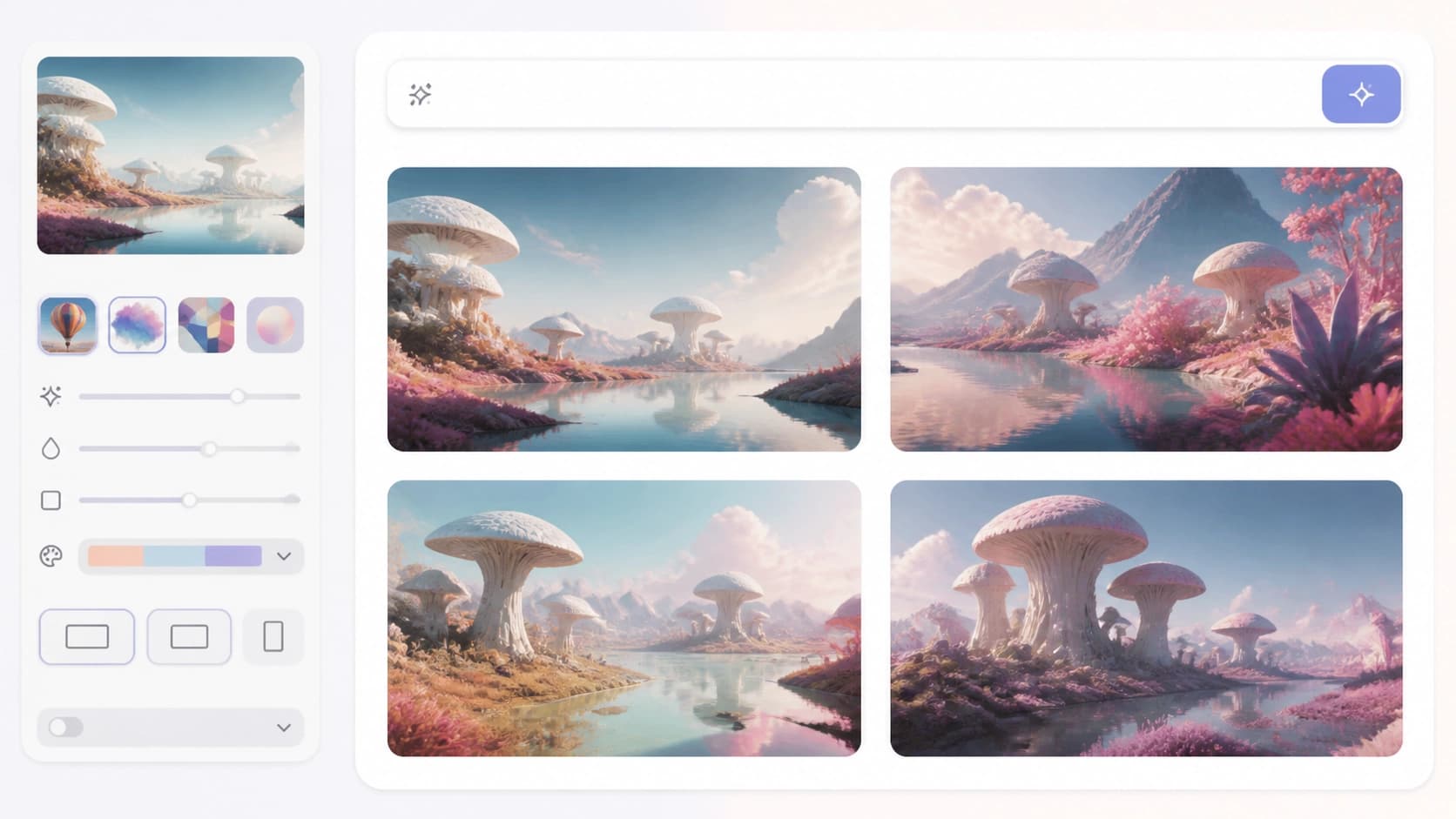
Generation from a text description. You formulate a prompt, specify style, colors, composition — and get several image variations. It's fast and convenient for concepts, mood boards, and exploring visual direction before sitting down to a serious layout.
Generative Fill
The second most popular feature. You upload your own image, brush over the area to change, and describe what needs to be added or removed. This makes it easy to remove a random passerby from a frame, replace a background, or draw in a new object. No manual selection needed — the model understands the context on its own.

Text effects and recoloring
For social media, flyers, and posters, the Text Effects feature is handy: you type a word, describe the desired texture — and get a stylized caption. Generative Recolor solves a different task: it picks color themes and variations for vector images based on a verbal description, saving you from manually cycling through palettes.
Vector and templates
The model can turn a detailed text description into editable vector graphics and also assemble layout templates. If you list the needed blocks in your prompt — structure, text, images — Firefly will put together ready-to-edit variations for further refinement.
Practical tips
- Add detail to your prompt. The more precisely you describe the subject, lighting, palette, and composition, the closer the result will be to your vision.
- Specify effects. For Text Effects, describe the material and styling: "crinkled paper," "neon on a dark background."
- Iterate. If it doesn't work on the first try, add more details or rephrase the description.
- Keep licensing in mind. Firefly is trained on safe data, but always check final assets for commercial projects.
The main advantage of Adobe Firefly is a "sandbox" for ideas: you can test a thought in a minute rather than an hour of manual work. Designers spend less time on routine and more on creative decisions.