
What is NotebookLM
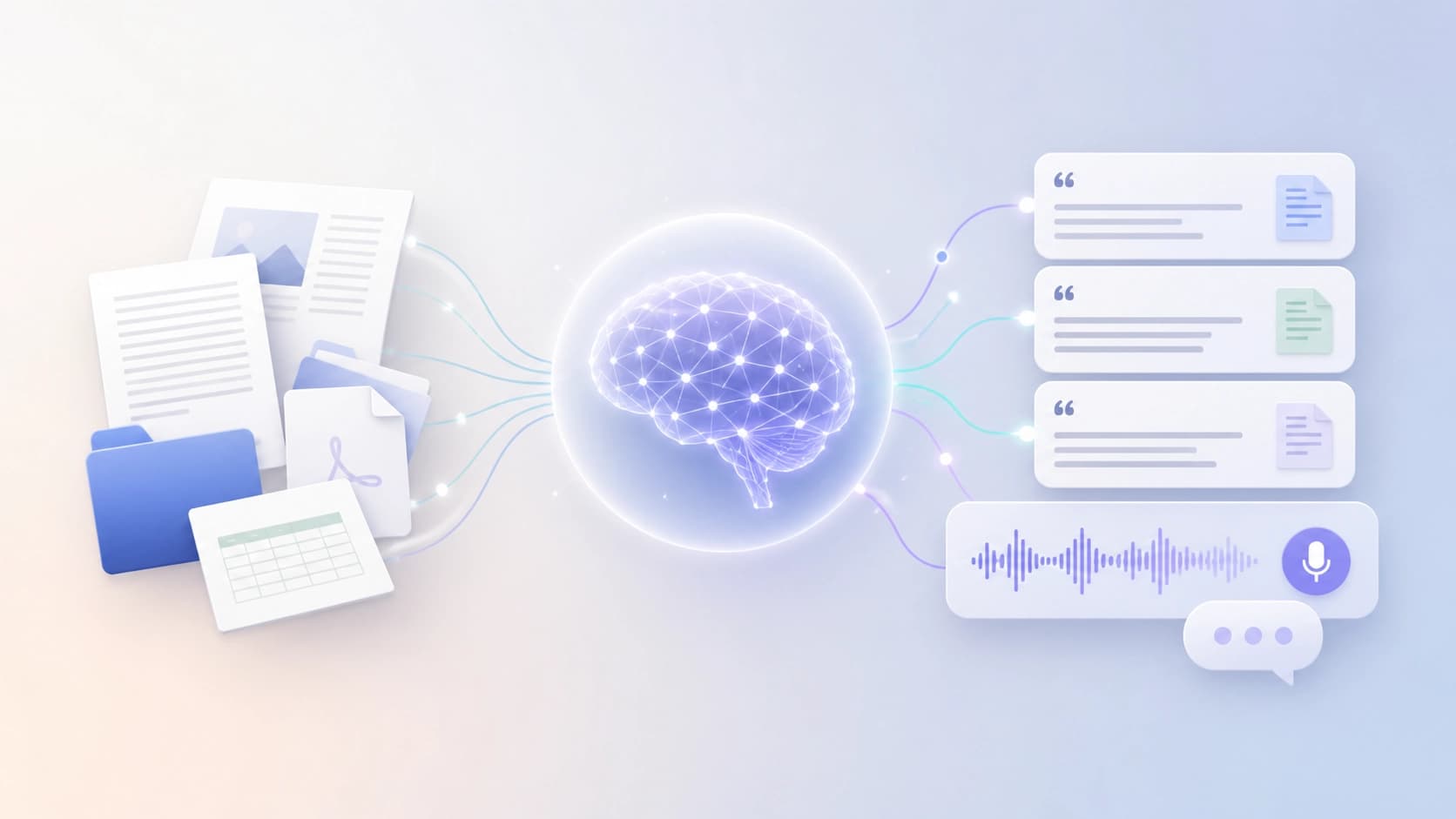
NotebookLM is a research assistant from Google built on the Gemini 1.5 Pro language model. Its core idea is different from conventional chatbots: instead of chatting “in a vacuum,” you give the service your documents, and it turns them into a personal knowledge base. The assistant then works only with this material, like an expert who has studied your entire collection.
This approach unlocks several capabilities at once. You can ask it to condense a long text into a short summary, ask a question about a specific passage, find hidden connections, or run a brainstorming session based on the uploaded data. The answers are not made up “out of thin air”: the model cites specific places in the source files. This is called source grounding — every claim can be easily verified by returning to the original. For anyone used to working seriously with documents, such transparency means a great deal.
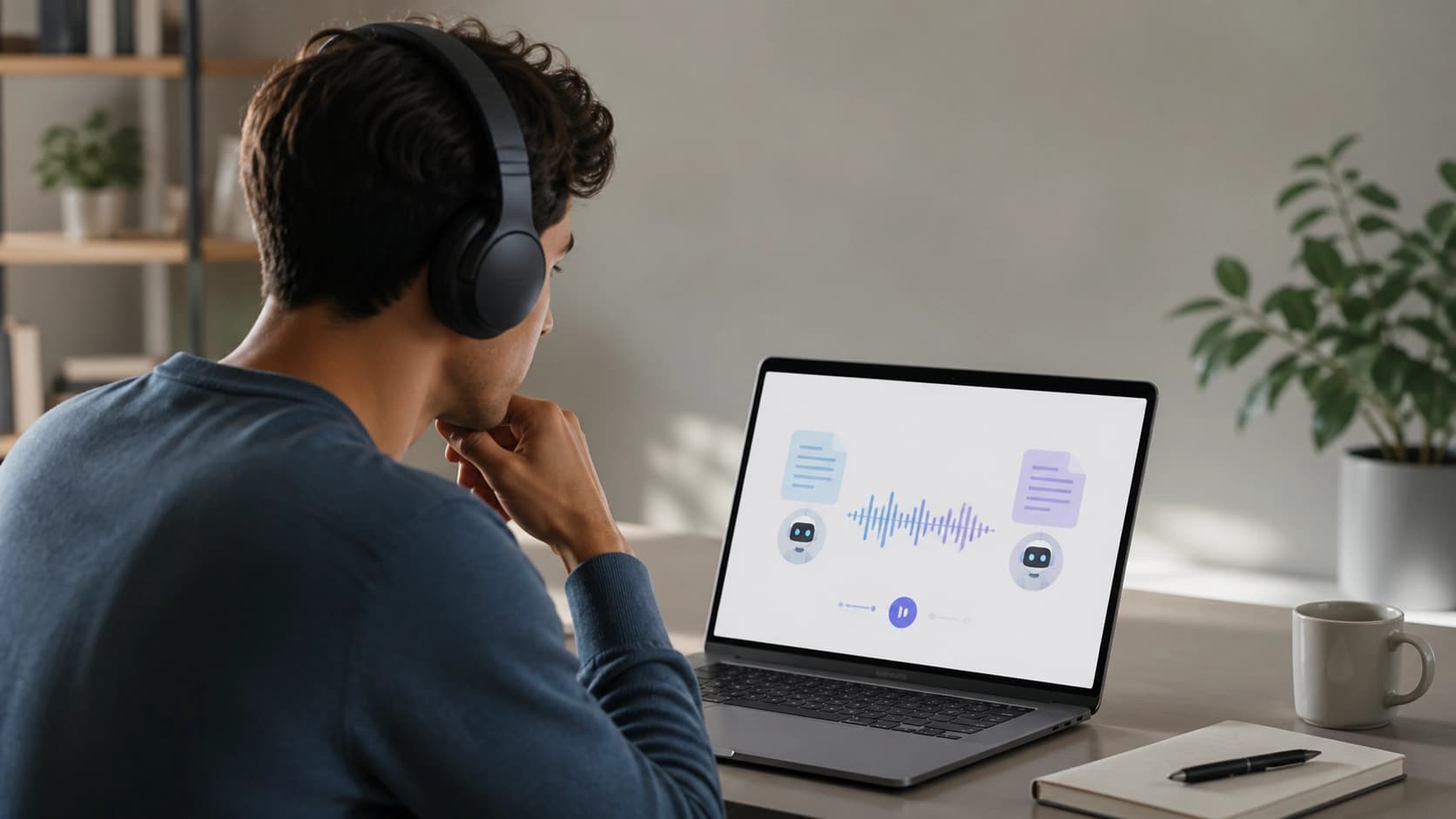
Another standout feature is Audio Overview. It turns your materials into an audio discussion: the AI retells the documents in a podcast-like format. This is a lifesaver when you need to catch up on content on the go or while doing other things.
Privacy is another plus. Users' personal data and uploaded files are not used to train the model. All you need to get started is a regular Google account.
How to get access and create your first notebook
Setup takes literally a few minutes. You open NotebookLM, sign in with a Google account, and land on a welcome page where the interface is self-explanatory. Next, you create your first notebook — a workspace for your sources and conversations with the assistant. It’s a good idea to give it a name right away: once you have several projects, it will be much easier to keep your bearings.
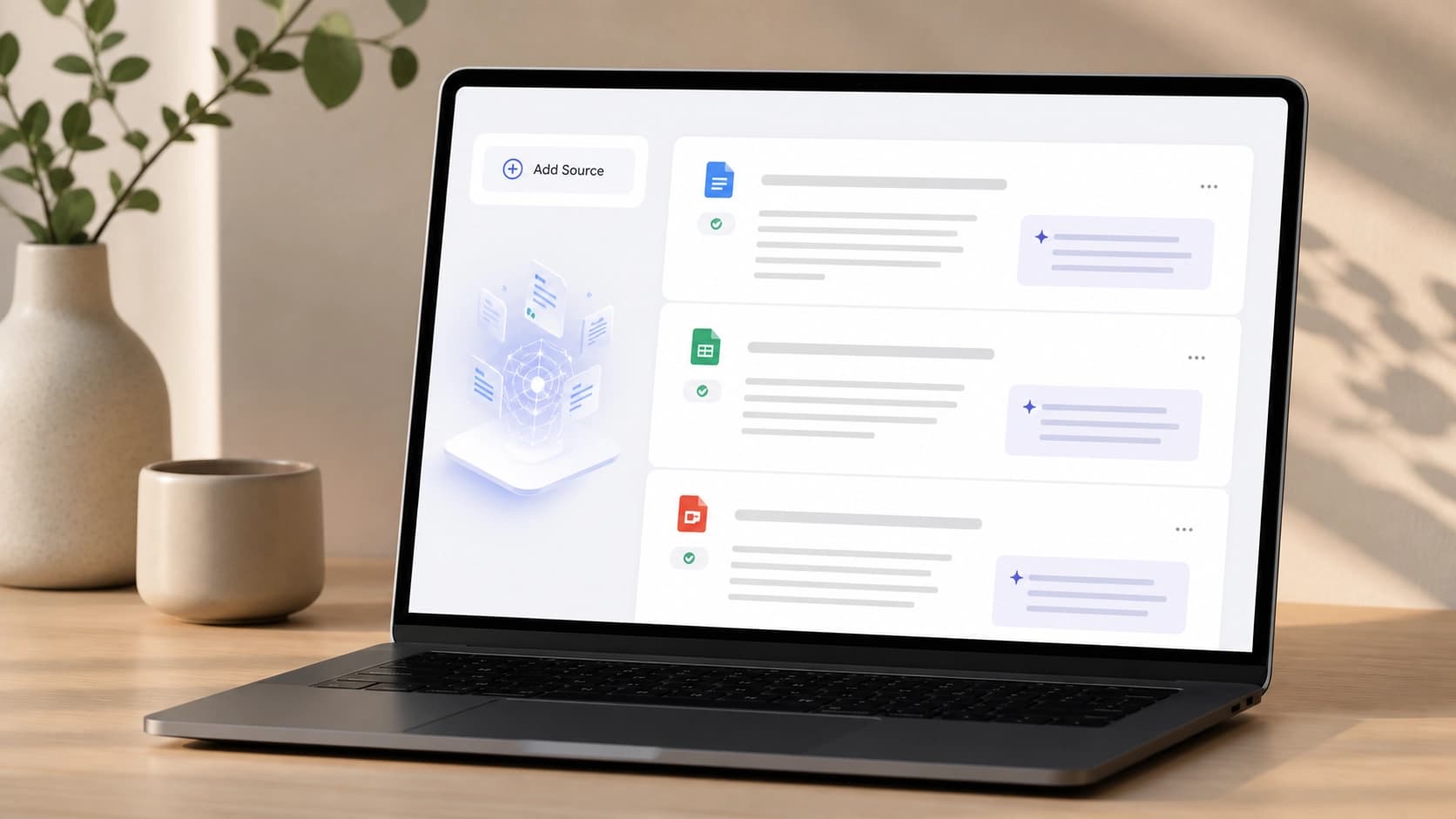
The next step is adding sources. The “Add Source” button opens the upload dialog: you can attach files from Google Drive, PDFs, plain text files, or simply provide a page URL. The service processes the upload automatically and generates a summary for each document — so you can see at a glance what has entered the knowledge base and top it up if needed.
How to use the assistant
The main way to work in NotebookLM is a dialogue with your material. You ask questions, and the model looks for answers strictly within your sources, pointing out exactly where the relevant information is located. This is more convenient than classic file search: no need to open documents one by one and manually cross-check the wording.
But the possibilities are not limited to questions and answers. You can ask the assistant to put together a summary on a topic, and it will stitch scattered facts into a structured text. You can ask it to pick out the key takeaways for a meeting, compile a list of arguments, or generate ideas for discussion. The model acts as a “second brain” that always remembers what is written in your materials.
A useful feature is content reformatting. The same set of sources can be turned into a study guide, a timeline of events, or a collection of frequently asked questions with answers. All of it is done with a simple text prompt, no manual structuring required. And when you have no energy left to read, Audio Overview kicks in — the same materials are discussed in voice, like a podcast.
A finished notebook can be shared: colleagues can access the sources and work on them together.
Where it comes in handy in practice
Academic research
For students and researchers, NotebookLM is a godsend. You upload research papers, ask questions about methodology or findings, and then ask it to compile a literature review or a study guide. Summaries and cross-source analyses that once took days now take minutes.
Business analytics
For analysts, the service helps upload industry reports and extract key insights from them. It’s convenient for comparing data across different sources and preparing executive summaries with citations — ready-made material for a report to management.
Content creation
Editors and bloggers use NotebookLM to organize research: collected materials turn into outlines, drafts, and podcast format via Audio Overview. No more jumping between a dozen tabs — the entire research lives in one notebook.
Legal practice
Lawyers upload cases, statutes, and precedents. The assistant quickly finds the needed quotes and helps structure materials for case preparation, saving hours of manual document review.
Product development
Product teams combine market research, user feedback, and technical specifications in a single notebook. The assistant links scattered data into one coherent picture, making it easier to spot contradictions and make decisions.
Summary
The main value of NotebookLM is the combination of deep document work and answer transparency. You don’t just get a result from the neural network — you see exactly which parts of the sources it relies on. And the fact that your data is not used to train the model makes the service suitable even for work-related and sensitive material.
In essence, it’s a personal research assistant that takes over the routine: reading large volumes, finding relevant passages, and structuring information. All that’s left for you is to make decisions and draw conclusions — which, you’ll agree, is the most interesting part of the job.