

Claude Code is a tool that lets you interact with the Claude language model directly from the terminal, giving you access to a powerful assistant for development, writing code, and automating routine tasks. Unlike a web interface, working in the terminal gives the model direct access to the file system, git history, and executable commands, turning it into a full-fledged development partner.
In this guide, we'll walk through how to install and configure Claude Code, which commands and modes of operation you need to know, and how to build it into your daily workflow to get the most out of it.
What is Claude Code and when do you need it
Claude Code is an agent that lives in your terminal. You give it a task in natural language, and it can read project files, make changes to the code, run test commands, and even commit the result. This is fundamentally different from simply chatting with a neural network: the model works not with a copy of the code but with a real project on your disk.
The tool is especially useful in the following situations:
- Understanding someone else's code — when you've opened a new repository and spend hours trying to figure out what's going on there.
- Refactoring and migration — renaming variables, extracting functions, or moving from one library to another.
- Writing tests — quickly covering key logic with unit tests.
- Solving complex debugging problems — the model can read logs, spot suspicious places in the code, and suggest hypotheses.
It's important to understand that Claude Code is not a replacement for an IDE and not an autopilot that writes an application for you. It's more like a highly skilled intern who quickly handles well-defined tasks but requires oversight and verification of the results.
Installation and initial setup
The installation process doesn't require any special knowledge, but there are a few nuances worth considering in advance.
Environment requirements
For it to work properly, you'll need:
- A terminal with support for modern features (Bash, Zsh, or PowerShell).
- Node.js installed on your system, since Claude Code is distributed through the npm package manager.
- A working Anthropic account and an API key, or a subscription to the appropriate pricing plan.
Step-by-step installation process
The instructions are standard for most CLI tools:
- Make sure Node.js version 18 or higher is installed on your system (you can check with
node -v). - Install the package globally via npm by running
npm install -g @anthropic-ai/claude-code. - After a successful installation, launch the tool in the terminal by running
claude. On first launch, it will prompt you to authenticate — follow the on-screen instructions. - Once authentication is complete, you can go to your project directory and run
claudethere — the tool will automatically detect which repository it's working with.
After authentication, a configuration file will be created in your home directory that you can edit manually. It stores the default model settings, preferred language, and other parameters.
Basic principles of working with the tool
Understanding how interaction with Claude Code works is the key to using it effectively. The tool carries on a conversation that isn't a simple one-way request-response exchange; it's an iterative process.
When you give a task like "fix the bug," Claude first studies the project structure, determines which files might be causing the problem, and only then proposes changes. Along the way, it may ask clarifying questions or show several solution options.
 ### Essential commands for everyday work
Key commands worth learning first:
/help— brings up help on all available slash commands./clear— clears the conversation history; useful for completely resetting the context./compact— condenses the current conversation if it has been preceded by many steps and the context is getting too long./model— switches between available model versions (for example, a faster or more accurate one)./review— launches a review of the changes made in the current session.
This set will let you confidently control the workflow without losing the thread of the conversation.
Key modes: autonomous work and control
One of Claude Code's most powerful features is its ability to perform chains of actions without constant confirmation. However, this is also a risky mode, so you need to understand the access control settings.
Automatic-action mode
When the model performs a task, it can:
- Read files from any part of the project.
- Make changes to existing files.
- Execute arbitrary bash commands.
There are three permission levels for different operations: allow (always permit), deny (always forbid), and ask (ask every time). Particular attention should be paid to commands that delete files or install dependencies. It's recommended to set ask mode for any operations that change the state of the system.
Edits with confirmation
Once changes have been made, the tool will offer you a chance to review the results. Each change will be shown in diff format. You can:
- Accept all changes at once.
- Accept some of them and reject others.
- Request further refinement of specific points.
This control ensures you always stay informed about what's happening to your code while the tool does the "grunt work."
How to assign tasks effectively
The quality of the output depends largely on how the task is formulated. A vague request like "optimize the code" will lead to vague results. A good prompt is the equivalent of a technical specification for a junior developer.
Structure of a high-quality prompt
- Context — what the project is, which codebase is being considered.
- Goal — what exactly needs to be done and what the desired end result is.
- Constraints — what boundaries are acceptable (don't touch X, don't change Y).
- Acceptance criteria — what counts as a successful outcome (tests passing, no regressions).
Compare two prompts:
- Bad: "Find and fix the payment bug."
- Good: "In the payment module, in the PaymentService.go file, there's an error in calculating the amount for foreign bank cards. Examine the logic in the calculateTotal function and fix the rounding. Add a unit test for this case. Do not change any code related to promo codes."
The more precisely you set the task, the less time iterative refinement takes.
Should you show the model examples
If the project contains code that resembles what you want to get, attach a link to it or paste a snippet. It's often faster to show the model the style used in the project than to ask it to "generate something in the same style."
Advanced techniques for everyday tasks
Once you've mastered the basic principles, you can move on to more complex scenarios that aren't obvious at first glance but provide a great deal of value.
Using git change history
Claude Code works great with git. You can ask it to figure out what changed in the last commit or analyze the differences between two branches. Such requests help you quickly write migration descriptions or perform bulk operations.
An example of a useful request: "Look at the list of changes in the src/ directory over the past week. Group them by functionality and create a summary for documentation."
Background work mode
The tool lets you run tasks asynchronously. You can give it a task to generate a module skeleton and come back to check the result in a few minutes. If that isn't an option, you can simply get notifications that the task has been completed.
Projects with a large context
If the project is very large, the model may get overwhelmed by the number of files. To avoid this, you can narrow the scope of work in advance by specifying particular folders or file types using shortcuts like src/controllers, tests/*.test.js.
Working with such constraints speeds up processing and makes the conclusions more accurate.
Typical mistakes and how to fix them
Even experienced developers sometimes slip up when working with Claude Code. Let's look at the most common mistakes.
Granting blanket permissions
The most common mistake is setting global permission for all model actions. It's convenient but extremely risky. A command that accidentally overwrites the configuration can break the project. Always keep confirmation enabled for critical operations.
Losing conversation context
When a session runs too long, the model may forget the initial requirements. The solution is to use the /compact command, which shortens the conversation while preserving the essence. It's also a good idea to periodically summarize key agreements so they stay in context.
 ### Mixing active tasks
Trying to solve three different problems at once in a single session is a bad idea. The model gets confused, and the context grows out of control. For each independent task, you should start a new conversation.
Comparison with alternatives
It's important to understand where Claude Code fits among other tools. If you use GitHub Copilot in your IDE, it's excellent at autocompletion and targeted suggestions. Claude Code is an assistant for larger changes: debugging, refactoring, working with git history.
Unlike web versions of ChatGPT and similar tools, Claude Code works with files directly, without copy-pasting from the browser. And unlike full-fledged AI agents running on remote servers, this tool is local and completely under your control.
How to integrate the tool into your daily process
The best way to master Claude Code is to introduce it into the small tasks that come up every day. Don't try to solve a large-scale problem right away. Instead, set aside one hour for practice using the following template:
- Start with a ticket in your task tracker that feels routine.
- Study the code yourself and formulate a request as if you were explaining the task to an intern.
- Run Claude Code and see how closely the result matches your internal plan.
- Compare the time spent with how long the manual work would have taken.
It turns out that for typical tasks (renaming, minor refactoring), the model handles things several times faster, and the most valuable part is that you spend less energy on routine and more time on architecture and design.
Working with errors and debugging
Knowing how to use the tool in critical situations is one of the most useful skills. Here's the scenario: tests are failing, and the logic seems tangled.
A great practice is to teach the model to analyze logs. Attach the error stack trace and describe the circumstances in which it occurred. Ask the model to explain what it sees in the code through "code interpretation." It often helps to use the "task — hypothesis — experiment" approach, where the model itself forms hypotheses about the cause and suggests experiments to test them.
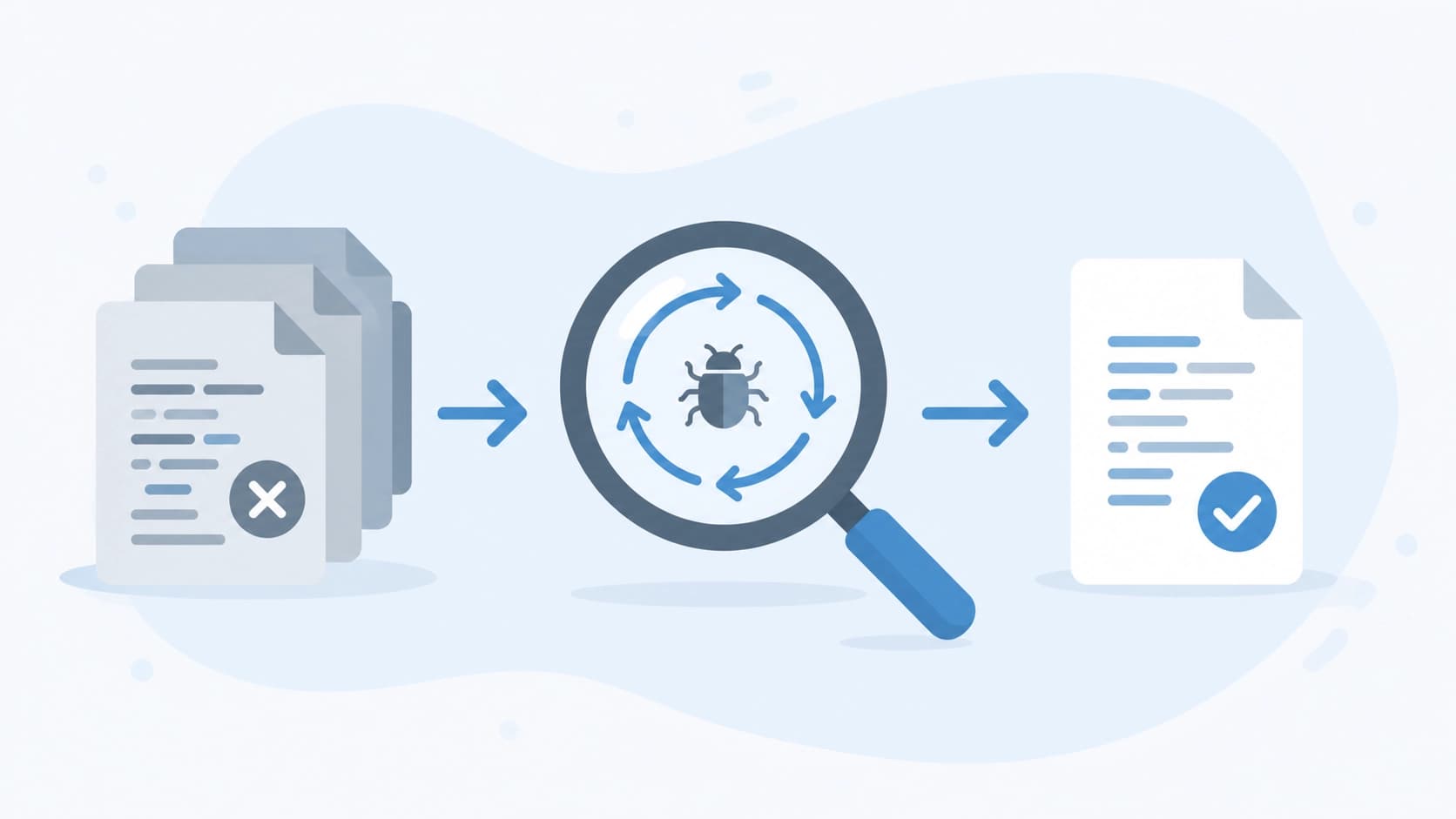 It's important not to hand over a ready-made solution on a silver platter, but to let Claude walk you through the reasoning. This approach not only solves the current problem but also teaches you the thinking structure of an experienced developer.
The future and limitations
Claude Code is evolving rapidly, and new features keep appearing. Already it can plan long sequences of actions, integrate with external services, and work with Docker containers. However, it's worth remembering the limitations.
The tool doesn't replace a deep understanding of architecture. It doesn't know "good" or "bad" in the context of your business. All recommendations are the result of statistical analysis of large volumes of code, not the ultimate truth.
Experts are still needed to make architectural decisions and be responsible for the long-term product strategy. But Claude Code can take on a significant share of the small, tedious tasks.
Now you have a foundation to build on — all that's left is practice. Start small, experiment, and gradually expand the boundaries of what you use it for.