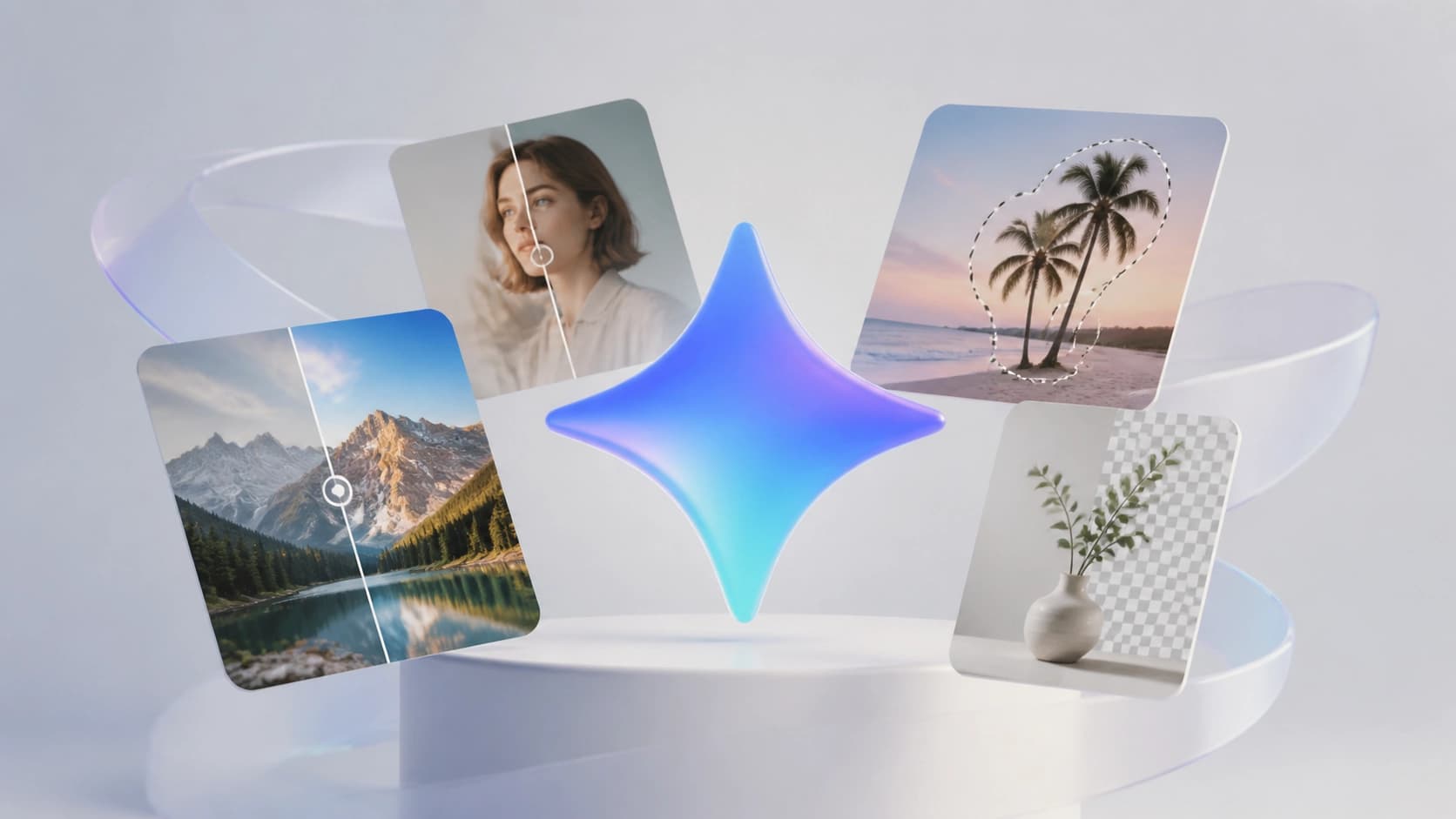
The capabilities of generative neural networks continue to expand, and in 2025 Google Gemini has become not just a chatbot, but a full-fledged tool for visual editing. Unlike classic graphic editors, Gemini lets you control an image through natural language: you describe the desired result, and the model transforms the original frame. The main advantage of this approach is speed and the lack of any need to learn complex retouching or layer tools. However, success directly depends on how well the request (prompt) is formulated. Below are six current use cases and ready-made templates for working effectively with Gemini.
Why prompt formulation is critical for Gemini
Gemini is a multimodal model that analyzes both the text instruction and the pixel content of the image. At the same time, "understanding" is built on probabilistic matching of words and visual patterns. If you give a vague instruction, the model will either offer a too generalized result or refuse to perform the operation. The more specifically you describe the parameters — light, composition, stylistic details, individual areas of the frame — the more accurate the resulting image will be.
It is also important to consider that Gemini can interpret the same term differently depending on the context. Therefore, the trend of 2025 is not just an "improve the photo" request, but structured instructions that specify the area of effect, style, and constraints. The model works well with attributes: it understands what "change only the background" or "add a reflection, but keep the orientation of the object" means.
Top 6 prompts for photo editing in 2025
1. Atmospheric lighting presets
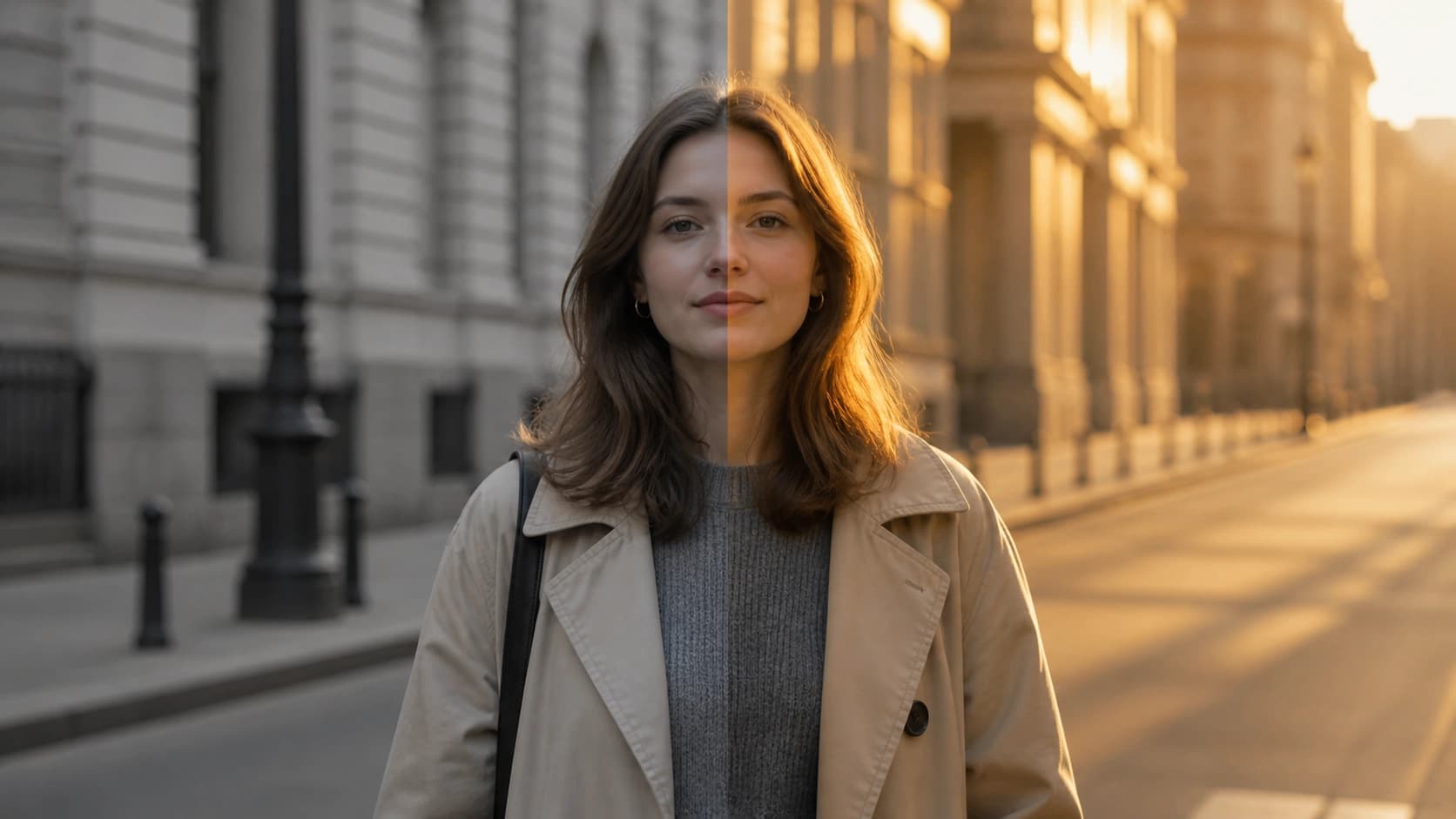
One of the most popular tasks is to quickly change the mood of a shot by rebuilding the lighting scheme. Instead of manually adjusting exposure and color temperature, you can apply a "golden hour", neon city, or overcast day effect to a photo. Gemini blends skin tones, shadows, and highlights quite accurately.
Example prompts:
- "Transform the lighting in this photo into the warm morning light of sunrise, make the shadows softer, add a slight haze. Preserve natural skin colors and clothing details."
- "Replace the light with neon blue and pink with backlight glow. Style — cyberpunk. Do not change the camera angle or the placement of people in the frame."
 ### 2. Detailed retouching and face correction
Retouching skin, removing acne, whitening teeth, changing hairstyle shape — these are things that are risky to do manually in Photoshop because of the "plastic" effect. Gemini has been trained on large datasets of photos of real people, so its edits look biometrically more natural. The main thing is to carefully formulate the degree of intervention so as not to end up with an over-processed face.
Example prompts:
- "Do natural retouching of the face: remove redness on the skin, reduce the appearance of dark circles under the eyes, but keep all moles and skin texture. Do not change the shape of the face or eyes."
- "Change the model's hairstyle: add soft shoulder-length waves, remove the bangs, keep the original hair color and the direction of lighting on the hair. Leave the background unchanged."
3. Background replacement with preserved perspective
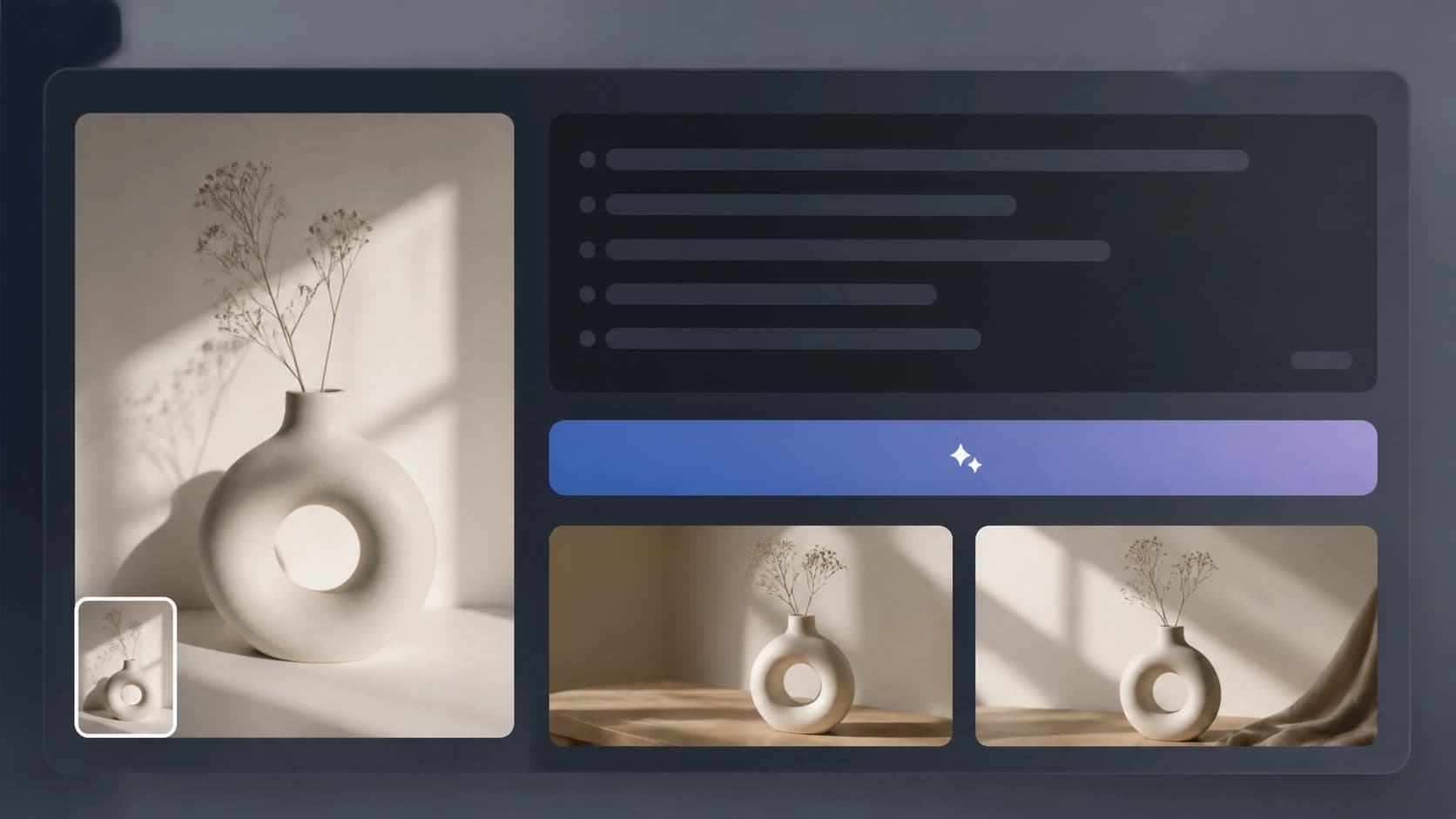
A classic task for advertising and stock photography. The difficulty is that the model must cut out the object, rebuild the perspective, and render the cast shadows. In 2025, Gemini handles this well if the prompt describes the new background and the physics of light in detail.
Example prompts:
- "Place the object from the shot onto the background of a modern minimalist kitchen. Shooting angle — frontal, camera at eye level. Light from the window on the left, the shadow from the objects falls down to the right. Keep the object sharp."
- "Replace the background with a mountain landscape. The horizon passes at 1/3 of the frame height. The people in the frame should look like they are standing on a lawn, add a slight haze at the foot of the mountains. Remove the original shadows on the ground."
4. Stylization into painting and retro materials
Turning a photo into watercolor, oil painting, or an Art Nouveau poster has ceased to be just a fun filter. Designers use such presets for collages and branded layouts. Gemini lets you control the intensity of the effect: from a light imitation of brushstrokes to a complete loss of photographic quality.
Example prompts:
- "Transform the photo into an Impressionist technique: visible brushstrokes on large planes, impasto oil texture. Color palette — warm, based on the original tones. The background should become more abstract, while faces remain recognizable."
- "Stylize the image as a Soviet minimalist poster of the 60s: a limited palette of three colors, lots of flat fills, add some vintage grain and light scratches on the surface. Do not change the composition."
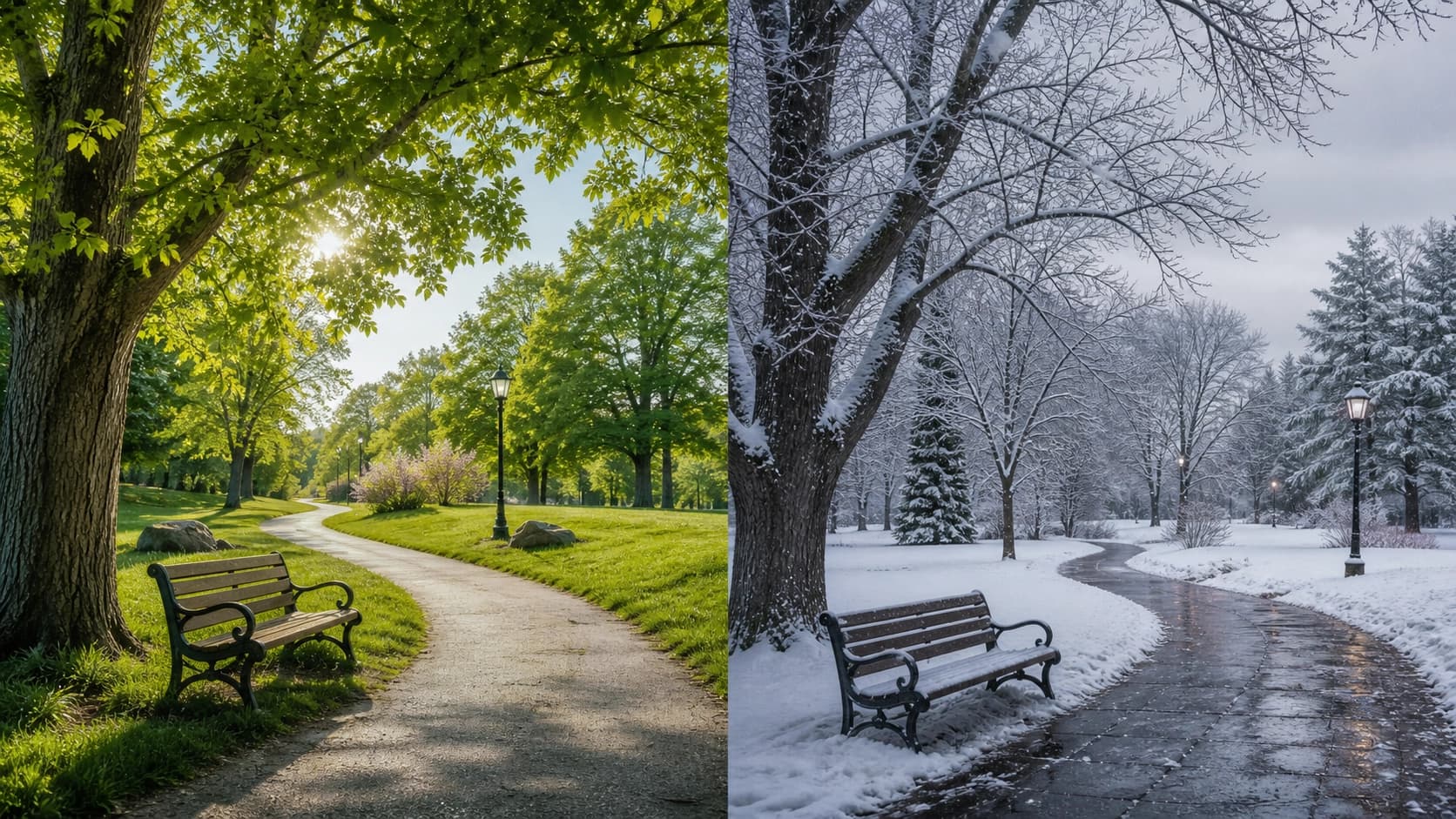
5. Manipulating seasons and weather
Advertising shoots often have to be moved from winter to summer or vice versa. Gemini handles this task by generating realistic vegetation, snow, or rain along the contours of objects. Requests of this type require specifying physical details: the state of the road, breath vapor, highlights on wet surfaces.
Example prompts:
- "Rework this summer landscape into a winter one: the ground is covered with freshly fallen snow, tree branches are bare, with caps of snow. The sky is gray and low. Do not add people or animals. Shadows should be cold and short."
- "Add a rain effect: puddles with reflections on the asphalt, humid air, light fog. Preserve brightness and contrast. All objects should look wet, but do not change their placement."
 ### 6. Generating overlays and special effects without third-party plugins
Previously, to add smoke, sparks, splashes, or flying butterflies, you had to search for stock textures. Gemini generates such elements right inside the scene, subjecting them to the logic of the frame. It is important to use words that describe the physics of the phenomenon: smoke density, wind direction, particle speed.
Example prompts:
- "Add streams of steam from the cup on the table to the frame: the steam is light, translucent, curling upward toward the window. Do not touch the surface of the cup or the book next to it."
- "Insert a flock of startled pigeons taking off to the right of the building into the scene. The birds are at different distances from the camera, with slight motion blur. Flight direction — up and to the left. Do not change the background architecture."
Step-by-step guide: how to adapt a prompt to your photo
To get a consistent result, the algorithm for working with Gemini looks like this. Keep in mind that preliminary preparation of the source image saves a lot of time.
- Prepare the image in advance. Crop extra elements at the edges, straighten the horizon or verticals if that is critical. The model processes the whole picture, and extra artifacts in the corners of the frame can accidentally fall into the transformation zone.
- Define the model's area of responsibility. In words, specify what should remain untouched: "keep the hands and objects in the foreground", "leave the fireplace and mirror in the background as they are". The more such constraints, the less "fantasy" you will see in the response.
- Specify style attributes: type of light, camera, depth of field. Add a phrase like "sharpness on the face", "f/1.8 depth of field", "low-angle view". This helps the model not to "flatten" everything too much.
- Write negative prompts. If sepia is unacceptable to you or you are worried about distortion of hands, add at the end of the prompt: "without changing body proportions", "skin color without shifting toward blue", "avoid adding extra objects".
- Send the prompt and analyze the result. If Gemini has changed, for example, too much extra stuff, rephrase the zone. Adding the phrase "don't change people's poses and composition" often helps — it is an important limiter.
- Combine approaches on a retry. If the model did not understand "wet road", describe it through its consequence: "add reflections of light on the asphalt". This often works better than direct instructions.
 Adapting prompts for different types of shots
Prompts for a portrait, landscape, or product shoot will differ in emphasis. In a portrait, the key is the prohibition on changing anatomy; in a landscape, preserving the geolocation (don't add palm trees where a northern forest is obvious); for product photography, the shape and material of the object must remain unchanged.
Keep a close eye on knowledge cutoff dates: the information about Gemini presented in this article is current for the first half of 2025. The functionality of the tools is developing rapidly — some limitations may be lifted in a few months, so always check the current guides in the official Google blog or on authoritative specialized platforms, for example TechCrunch. If you work on commercial projects, it is useful to keep a separate document with your own prompt bank that you will add to as you experiment — this is the most reliable way to track how well formulations work in practice.