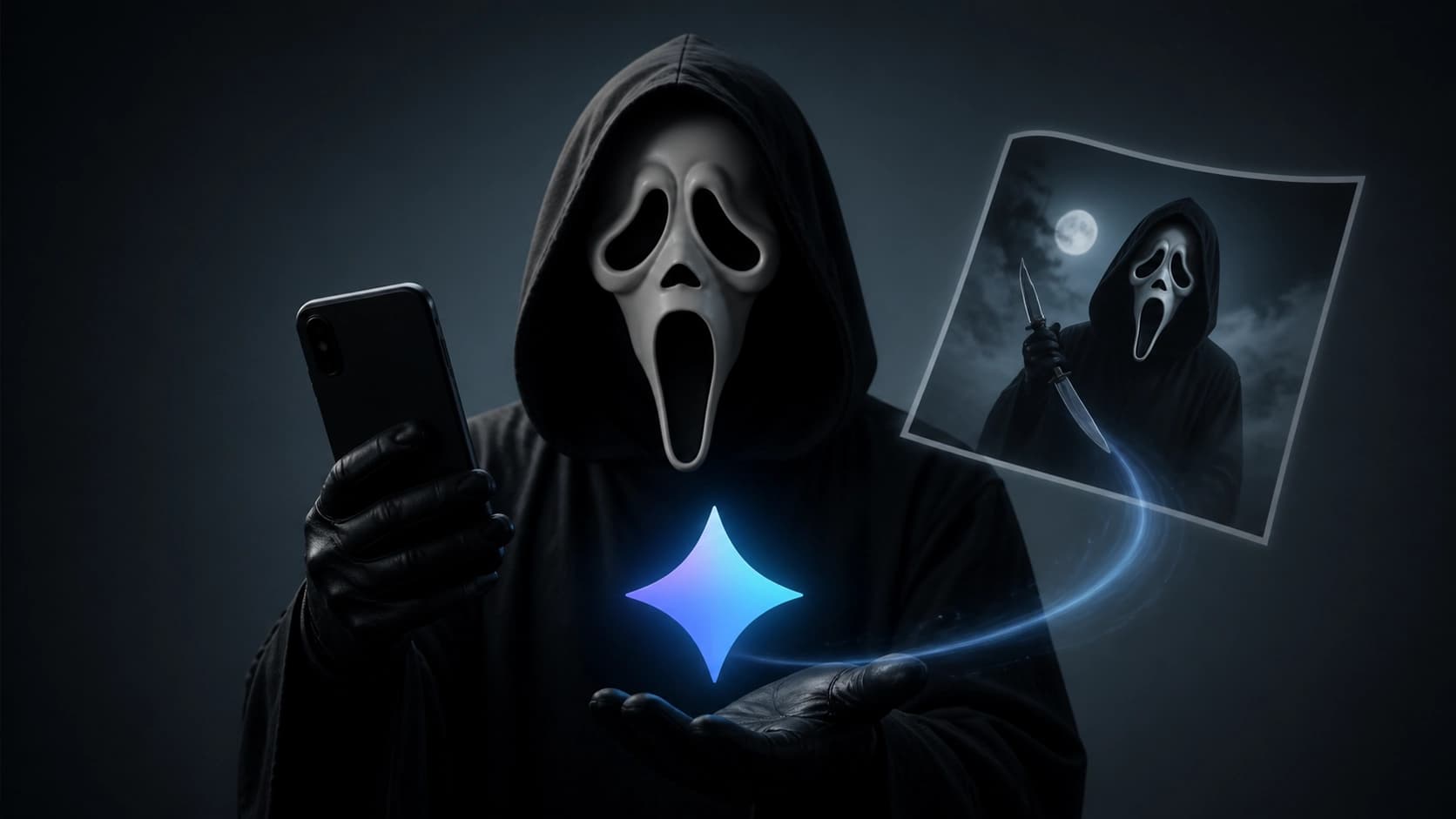
Ghostface — the mask from the cult slasher “Scream” — has long ceased to be just a horror movie prop. Today it is one of the most recognizable visual symbols of pop culture, actively used in memes, Tumblr aesthetics, and street fashion. Thanks to generative neural networks, in particular Google Gemini, anyone can create an atmospheric shot with this mask — without a costume, makeup, or Photoshop. Below is a detailed guide on how to turn a text description into an impressive image and get a genuinely trending result.
Why Google Gemini is great for generating stylized photos
Google Gemini is a multimodal neural network that understands not only text but also images, opening up broad possibilities for creative experiments. Unlike narrowly specialized services, Gemini handles complex requests well, where you need to combine a specific object (the Ghostface mask) with a certain atmosphere, lighting, and style. The model can work with references to cinematic scenes, imitate film grain, and even understand abstract concepts like “vibe” or “90s aesthetics.”
It’s important to understand that Gemini is not a graphic editor. You don’t upload a photo and ask it to “add a mask.” Instead, you create a detailed text description (prompt) that the neural network interprets into a visual image. The more precise and vivid your request is, the higher the chance of getting a frame you’ll want to save and share on social media.
Key elements of the perfect Ghostface prompt
To get not just a picture with a mask but a stylish, trending shot, you need to break the request down into components. A prompt can roughly be divided into several blocks:
- Subject: it shouldn’t just be “a person in a mask.” Specify the pose, clothing (long black cloak, hoodie, leather jacket), height, and build. For example: “a person in a long black cloak, standing with their back to the camera.”
- Environment: the location sets the mood. It could be a phone booth, an abandoned school hallway, a neon-lit alley, an autumn park, or an empty supermarket parking lot.
- Lighting and color: this is the key to looking “trendy.” Right now, neon accents (pink, blue, purple), backlighting, moonlight, and muted earthy tones are popular. Specify the light source and its color.
- Style and technique: add a reference to a specific aesthetic — “Polaroid,” “Kodak Portra film,” “cinematic 35mm frame,” “David Lynch style,” or “2008 YouTube reaction aesthetic.” This strongly affects color rendering and grain.
- Mood: describe the atmosphere in a word or two — “eerie calm,” “melancholic,” “ironic,” “uneasy.”
Try to avoid abstract adjectives like “beautiful” or “cool.” Instead, be specific: “fog creeping across the asphalt,” “neon sign reflections in the mask’s eyes,” “the lens is slightly fogged up.”
Step-by-step guide to creating an image
The generation process consists of a few simple steps. The logic is the same for both the web version and the mobile app.
- Open Google Gemini. Go to the service’s official website (gemini.google.com) or launch the app on your smartphone. Make sure you’re signed in to your Google account.
- Write a detailed prompt. Type your request into the text input field. Don’t limit yourself to one sentence. Ideally, the description should be 3–5 lines and answer the questions: who, where, under what light, in what style.
- Send the request and wait for the result. Gemini will generate one or more images. This usually takes 10 to 30 seconds.
- Evaluate the result and adjust the prompt. If you’re not happy with the outcome, don’t worry. That’s a normal process. Look at what was missing: maybe the mask turned out too small, or the lighting was too flat.
- Refine and add details. Add phrases like “close-up,” “slightly from below,” “blurred background,” or “more contrast” to the prompt. Send the request again.
- Save the shots you like. Once you get a good version, download it to your device. It’s best to generate not one image but a series of 3–4 so you can pick the perfect angle.
 How to adapt the prompt to different trends
Ghostface is a versatile character that works equally well in a creepy horror setting and in an ironic context. How you describe the scene determines which section of social media your post ends up in.
Viral Tumblr and Pinterest aesthetics
For these platforms, shots that look like frames from indie films work best. Use soft side lighting, film grain, and pastel tones. A prompt might look like this: “A girl in a black cloak and Ghostface mask sitting on a swing at an empty playground at dawn, fog, Kodak film, vintage style, calm uneasy mood.” The key is to achieve the effect of a candid shot rather than a staged photo.
90s slasher atmosphere
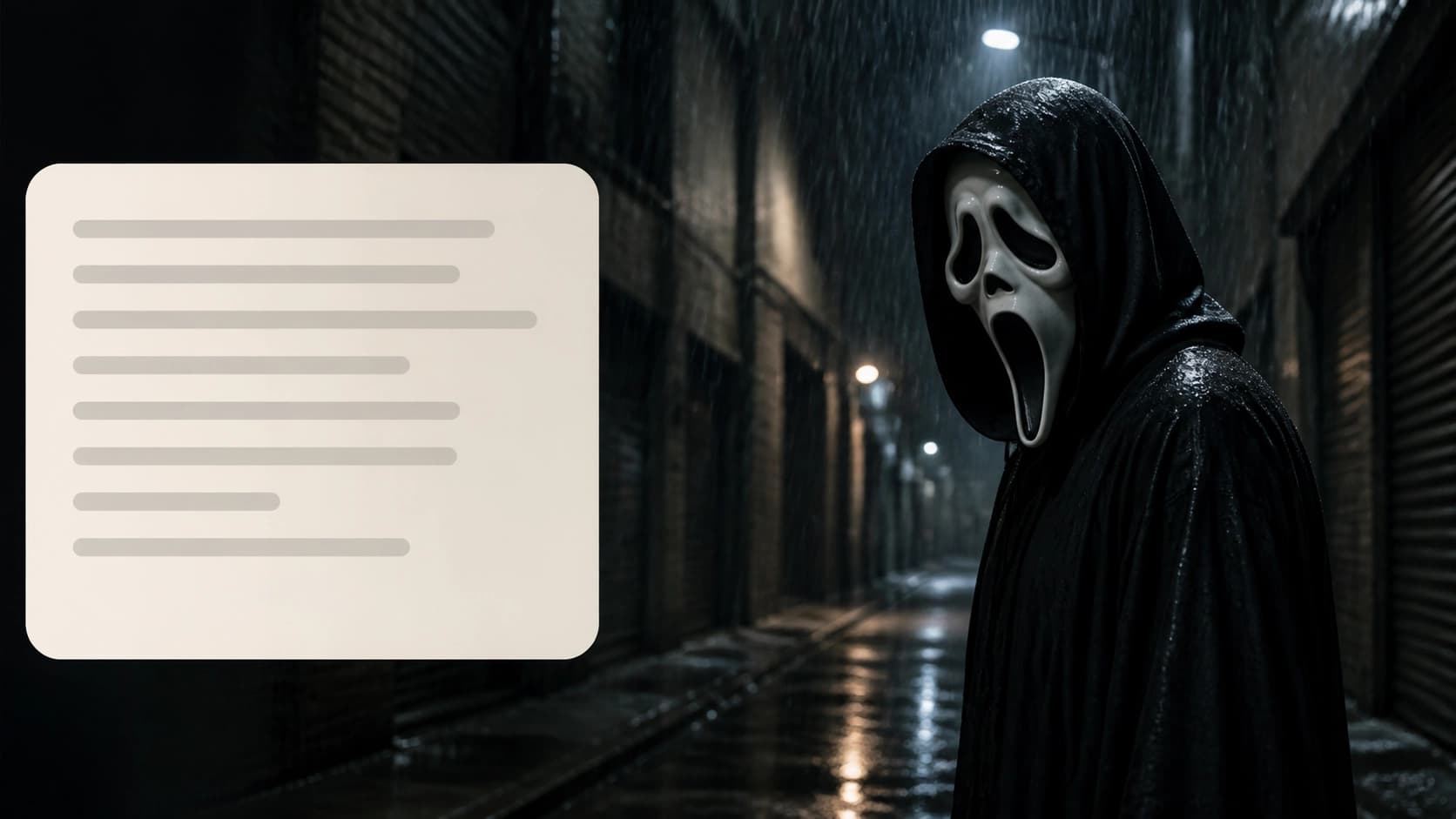
To get a classic horror frame, focus on dark tones, harsh shadows, and tense composition. Example request: “A man in a Ghostface mask and black cloak standing in a dark corridor of an old school, light coming from around the corner, a fan humming, VHS style, VHS noise, grain, 90s horror, POV”.
Ironic and meme context
Ghostface is often used outside the horror context — for example, in everyday or absurd situations. A prompt for this case: “Close-up of a Ghostface mask holding a latte with a heart in the milk foam, morning sun, café in the background, cheerful but with slight tension, Instagram blogger style.” Such images often become memes because of the contrast between the scary mask and the mundane situation.
Mistakes that prevent you from getting a good result
Beginners often run into typical problems during generation. They’re easy to avoid if you know the causes.
- A request that’s too short. A phrase like “make Ghostface” will just give you a standard image from the movie cover. Always add context: action, place, light.
- Contradictory descriptions. Don’t ask for “soft pastel light” and “dark noir” at the same time. Choose one direction; otherwise, the model will produce an average, inexpressive result.
- Ignoring proportions. Sometimes the neural network draws the mask too small, or it blends into the hood. To fix this, add “close-up on the face, the mask takes up 70% of the frame.”
- Refusing to experiment. If the first attempt fails, don’t delete your prompt history. It’s better to edit the previous prompt by adding one or two new words. This often works better than writing a completely new description.
Tips for post-processing and publishing
An image generated by Gemini almost always needs a little polish before publishing. That’s normal — the neural network gives you a draft version that you can refine.
- Sharpen the image. Images from neural networks sometimes come out slightly soft. Add a light sharpening effect to the mask’s eyes and costume details in any photo editor.
- Experiment with filters. Apply a film preset or add a vignette — this will enhance the cinematic feel.
- Crop the frame. Sometimes the model leaves extra space at the edges. Crop the photo to a square or vertical format so it fits better in an Instagram feed or Telegram channel.
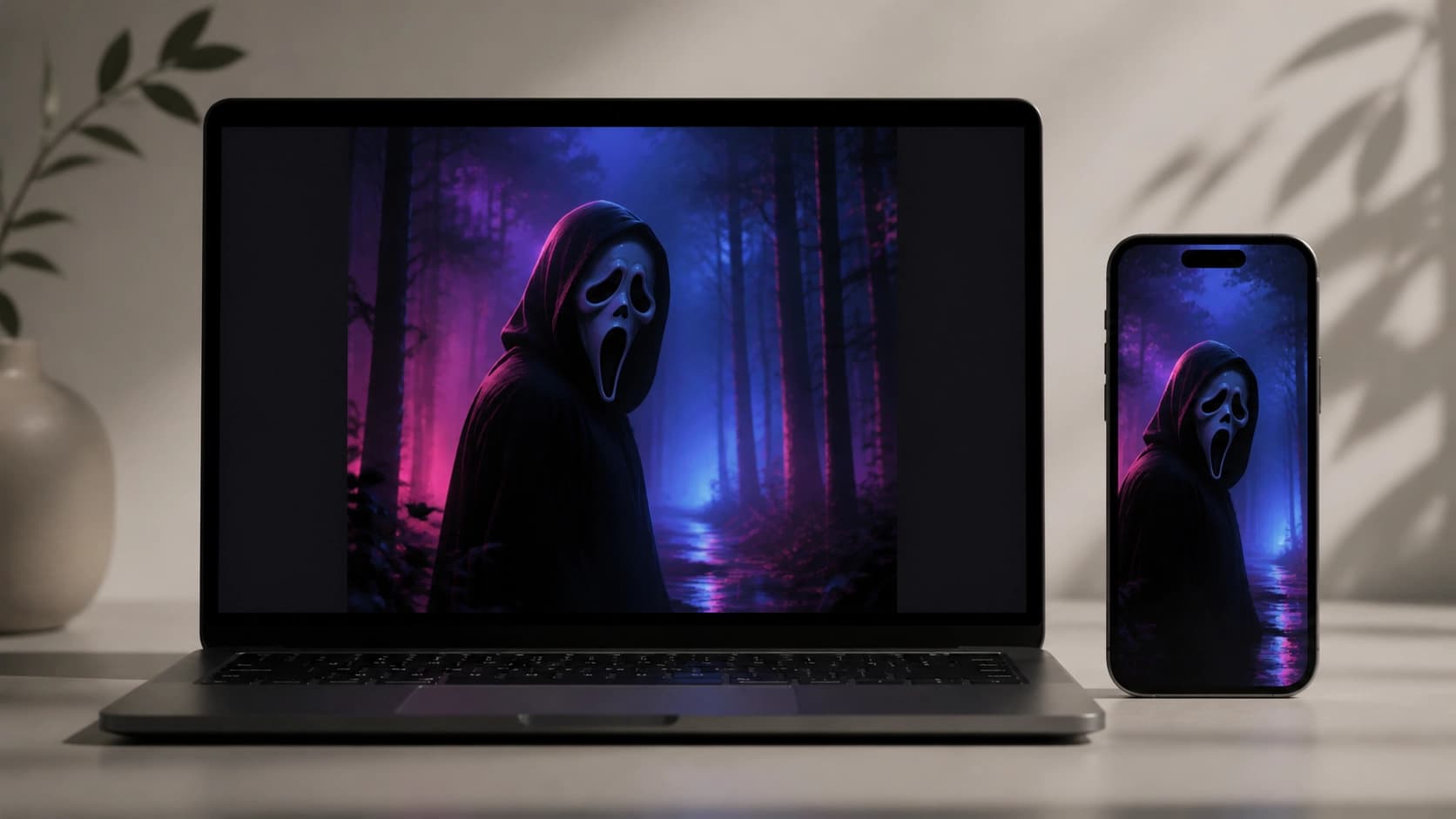 Creating trending photos with Ghostface using Google Gemini is an exciting process that develops your visual taste and sense of style. Don’t be afraid to experiment: try different lighting and location combinations, mix eras and genres. Over time, you’ll learn to “negotiate” with the neural network and develop your own recognizable visual signature. Remember that the main tool here is your imagination, and the prompt is just a way to express it in words.